ZTechTemplates — Template Approval
The Template Approval page is where administrators review and manage templates that have been uploaded for approval.
The approval window is divided into two main sections:
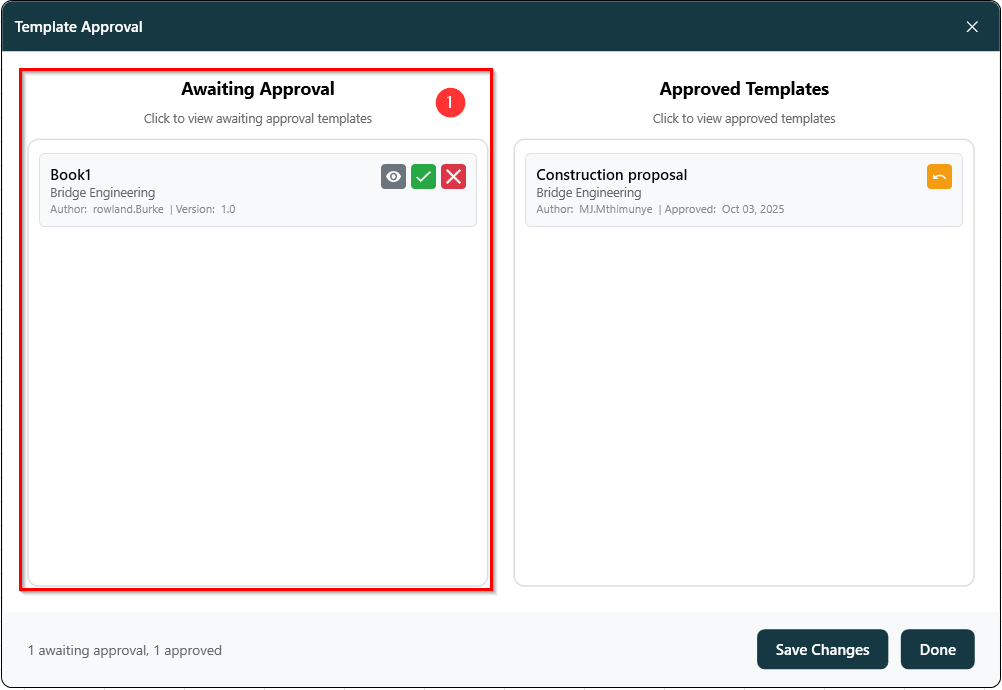
- ⏳ Awaiting Approval — Shows templates that have been uploaded but not yet approved.
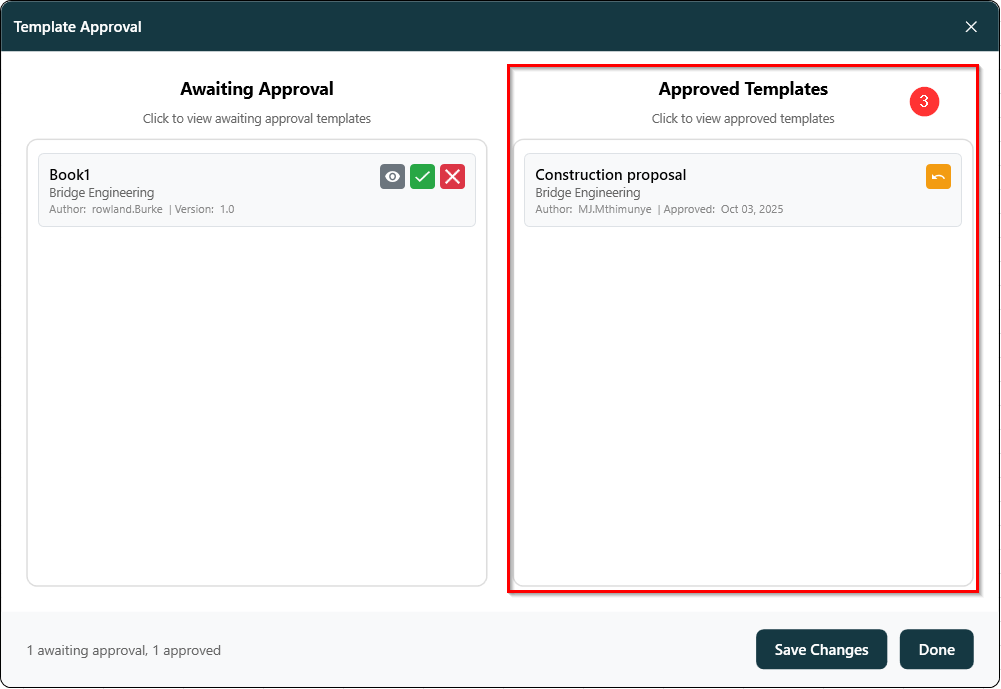
- ✅ Approved Templates — Displays templates that have been reviewed and approved for use.
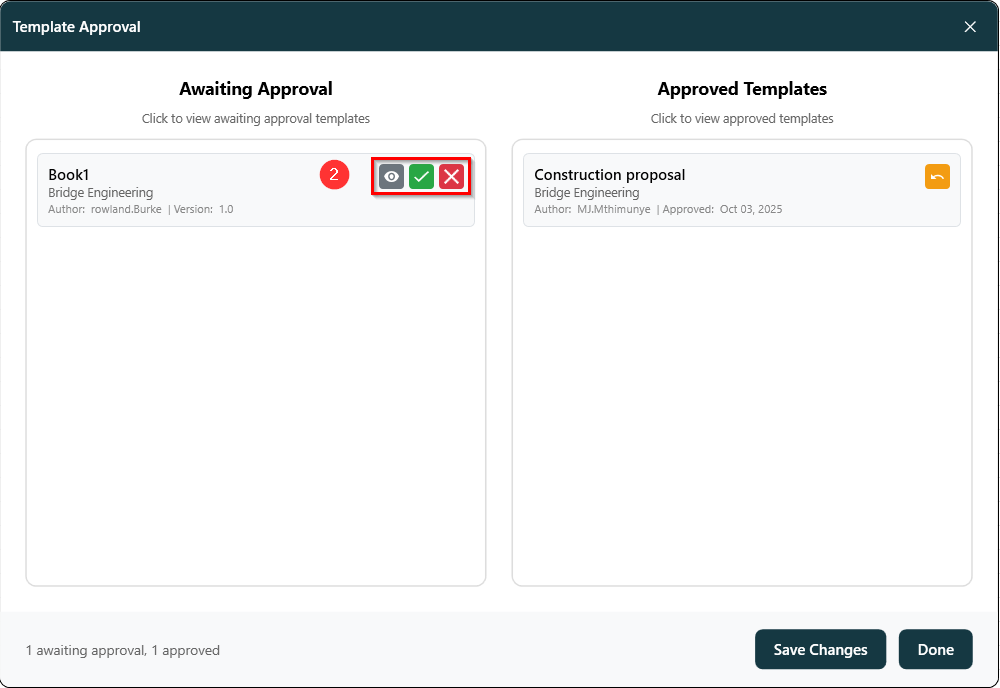
Administrators can view a template to check its contents, then choose to approve it using the ✔️ icon or disapprove it using the ✖️ icon.
Once approved, the template automatically moves to the Approved Templates column and becomes available in the Template Browser for all users to access.
This process helps maintain quality and consistency by ensuring that only verified templates are shared across the team.
Features:
-
Awaiting Approval
- Admin users can view and approve uploaded templates. The viewport shown in figure 1.1 below shows templates that have been uploaded but not yet approved.
-
Approve Templates
- Admin users can approve accepted templates. The buttons shown in figure 1.2 below allows admin users to view uploaded templates and approve/dissaprove templates.
-
Approved Templates
- Approved templates are then shown in the approved templates column to be consumed by all users. The viewport shown in figure 1.3 below shows templates that have been approved.
-
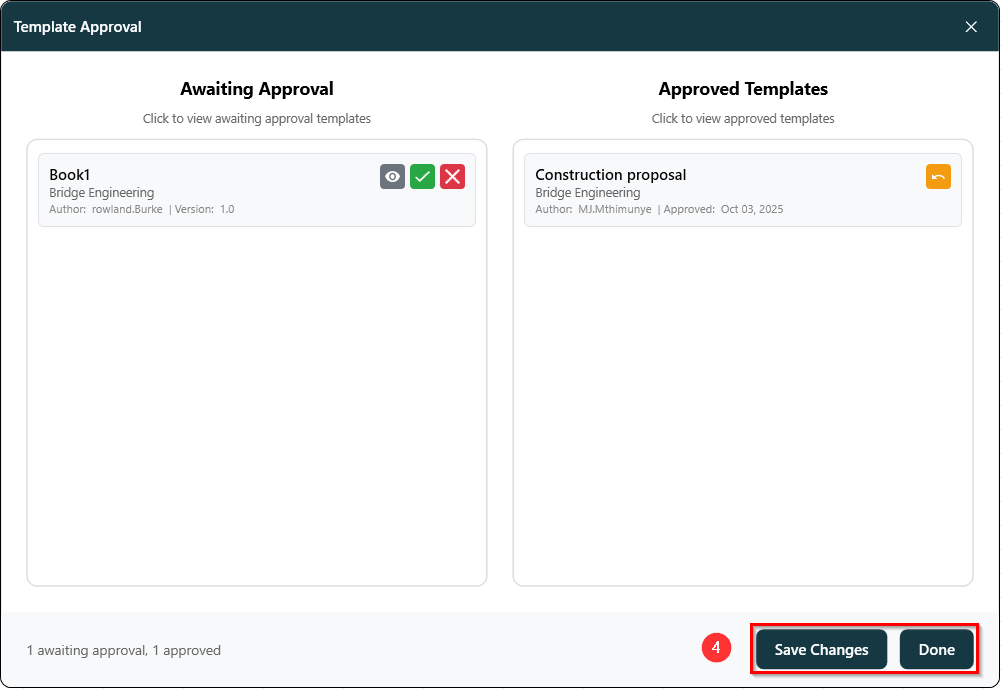
Save Templates
- Admin users can then save changes. The buttons shown in figure 1.4 below allows the admin user to save the changes and close the UI.