ZTools Revit Add-ins
ZTools is a suite of Autodesk Revit add-ins designed to enhance productivity and streamline repetitive design workflows.
The suite supports multiple versions of Autodesk Revit (2023, 2024, and 2025) and leverages WPF/WinForms with MVVM for a modern, responsive user interface.

Why a Suite of Revit Plugins?
Modern BIM workflows demand consistency, automation, and efficiency. ZTools provides designers with purpose-built tools that automate tedious tasks, enforce company standards, and reduce manual errors.
By consolidating these into a single suite, teams can maintain a consistent workflow across multiple projects and Revit versions.
📌 Plugins
1. Style Manager
The Style Manager is the first plugin in the ZTools suite. It is dedicated to managing Revit styles and ensuring compliance with company standards.
The plugin provides a clear, tabbed interface to handle multiple style types.
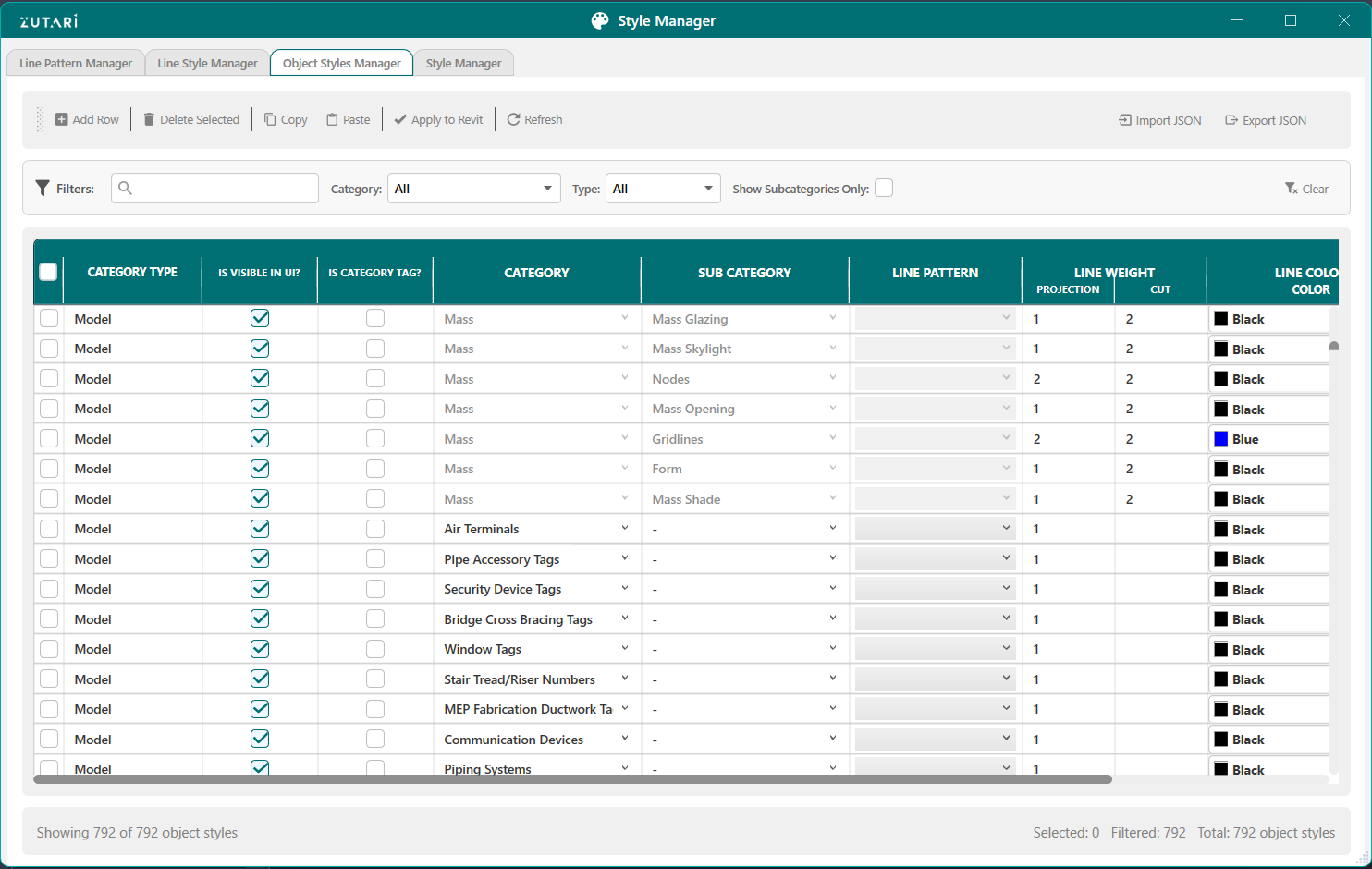
Features:
-
Line Patterns Manager
- Create, update, and modify line patterns in Revit.
- Import/export line patterns via JSON for easy sharing and version control.
-
Line Styles Manager
- Manage line styles by mapping patterns, weights, and colors.
- Import/export JSON configurations to quickly apply standards.
-
Object Styles Manager
- Control line styles for categories and subcategories.
- Adjust visibility, projection, and cut styles consistently.
-
Style Comparison
- Compare project styles with company standards using JSON imports.
- Identify matching, different, or missing styles.
- Helps enforce compliance with organizational CAD/BIM standards.
2. Section Export
The Section Export plugin is dedicated to creating sectioned exports of a model.
The plugin exports a vertical section of a building model to a new Revit file. This allows users to isolate and export elements between two selected levels (floors) in a Revit project.
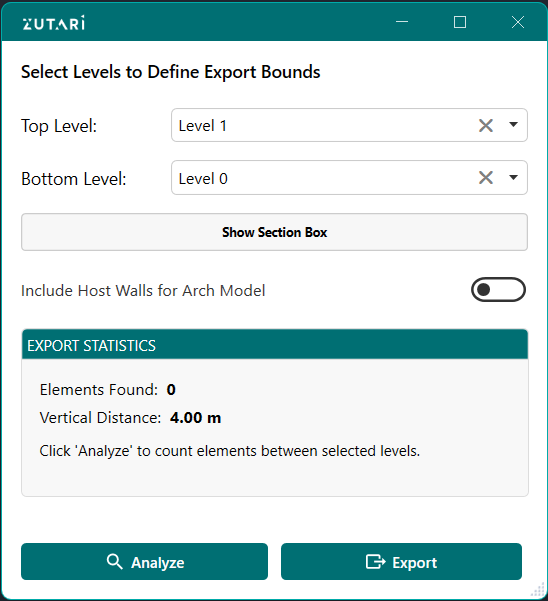
Features:
-
Element Filtering & Selection
- Analyzes elements between a user-selected top and bottom level Filters out problematic elements that can't be copied (sketch-based elements, boundaries, line-based families).
- Optionally includes curtain wall host elements when panels/mullions are selected.
-
Export Process
- Creates a new Revit project file
- Copies elements in batches (50 at a time) to handle large datasets
- Preserves the physical elevation of elements
- Creates a matching level in the new file at the correct elevation
- Reassigns all copied elements to reference the new level
-
Cleanup & Organization
- Removes the default "Level 1" from the new project
- Creates a floor plan view for the exported section
- Names the output file with timestamp and level information
-
3D Visualization
- Includes a ShowSection() method that displays the selected vertical section in a 3D view Sets up a section box to show only elements between the selected levels
-
Use Case
- This would be useful for extracting a single floor or multi-floor section from a large building model - for example, exporting floors 3-5 of a 20-story building as a standalone Revit file for detailed coordination or analysis.
3. Views Sheets Manager
The Views Sheets Manager plugin is a comprehensive Revit automation tool for creating, modifying, organizing, and batch-managing drawing sheets and their associated views. It streamlines sheet creation workflows and introduces advanced view-placement automation powered by geometric curve configuration.
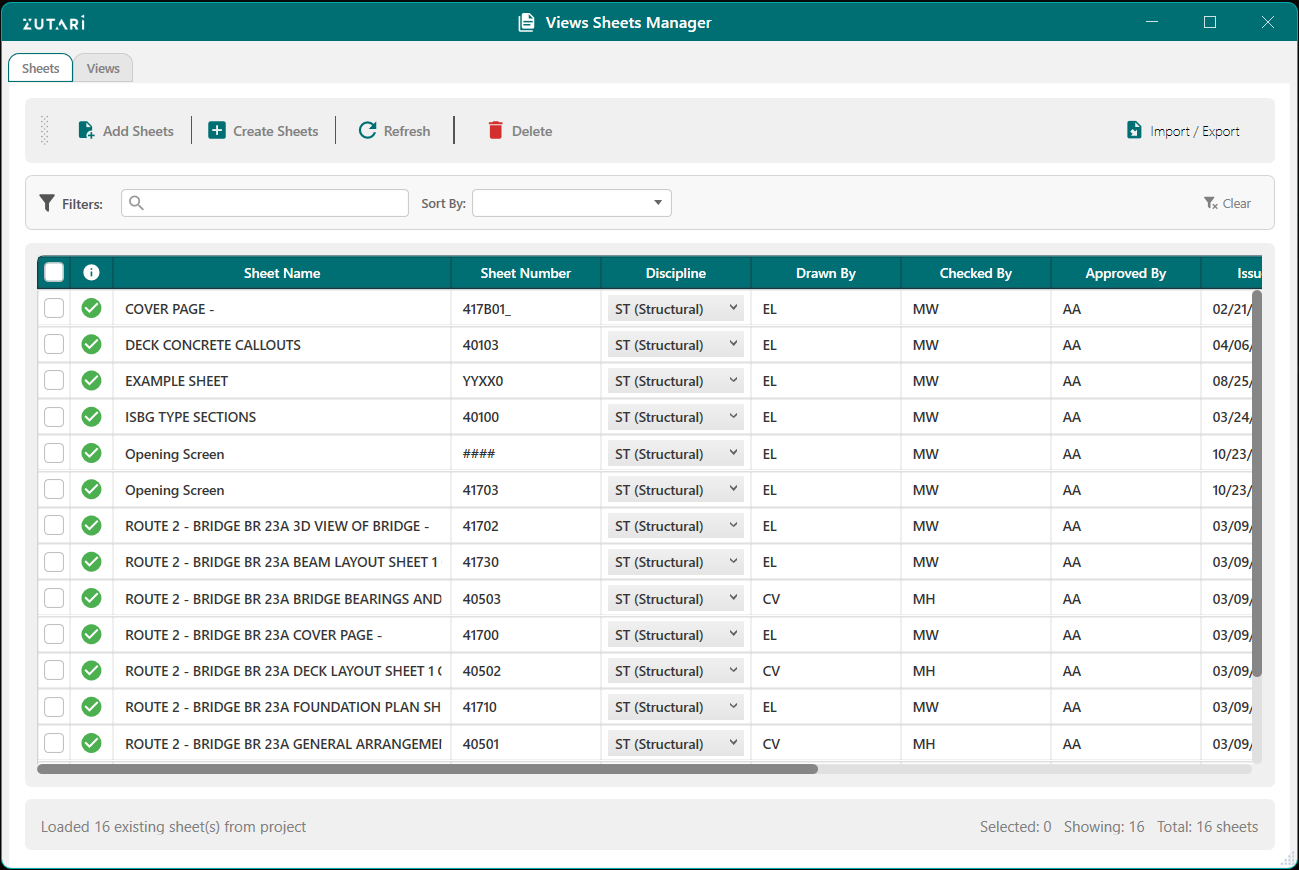
Features:
-
Manage Existing Sheets
- Load all existing sheets from the active Revit project.
- Edit sheet properties such as number, name, and custom parameters.
- Add or remove views directly from sheets.
- Export sheet data to Excel for external editing.
- Import Excel files to bulk-create or update sheets.
- Sync all changes back to Revit with one click.
-
Create New Sheets
- Pick 2 Points: Define alignment by selecting two points. Generates aligned floor plan and elevation views automatically.
- Draw Line: Draw a line in the model to set the alignment direction. Views are generated and placed based on this line.
- Select Curve: Use any model curve as the alignment reference for automatic view creation and placement.
- Create Without Selection: Create a standard sheet with no alignment. Ideal for placing existing views or creating sheets from Excel.
-
Excel Integration
- Export: Send sheet data to Excel for quick editing or team collaboration.
- Import: Bulk-create or update sheets and sheet parameters from an Excel file.
-
Views Management
- View all placed views on a sheet from the Views tab.
- Add views from a dropdown of all Revit views (currently supports up to two).
- Views are automatically sized and positioned on the sheet.
- Remove a view using the ❌ icon — removed both in the UI and in Revit.