Style-Manager
The Style Manager is dedicated to managing Revit styles and ensuring compliance with company standards.
The plugin provides a clear, tabbed interface to handle multiple style types.
Features:
-
Line Patterns Manager
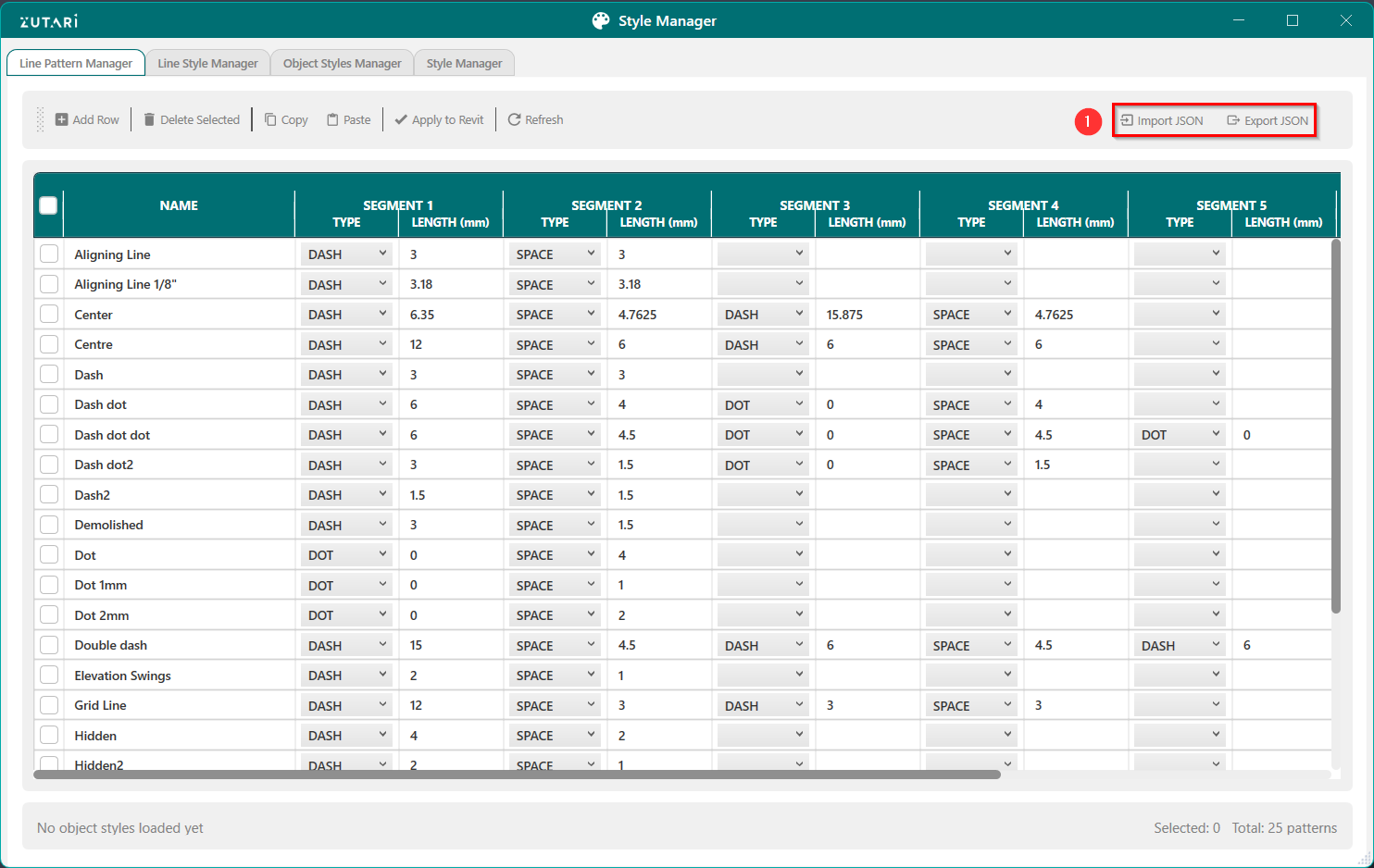
- Import/export line patterns via JSON for easy sharing and version control. The buttons shown in figure 1.1 below allows us to import line pattern JSON styles.
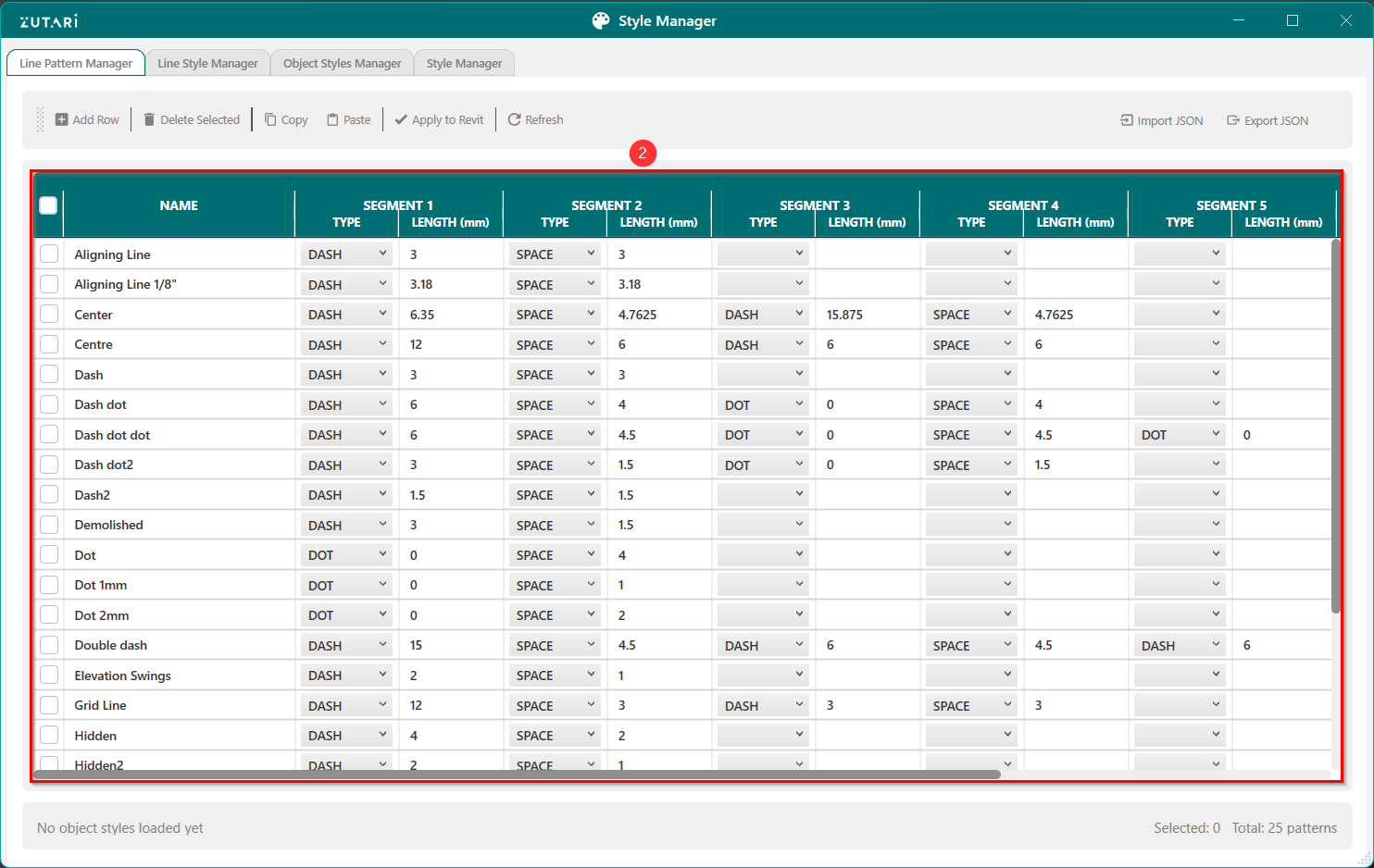
- View and modify line patterns and apply changes to Revit. The viewport shown in figure 1.2 below shows the line patterns segments which can be updated.
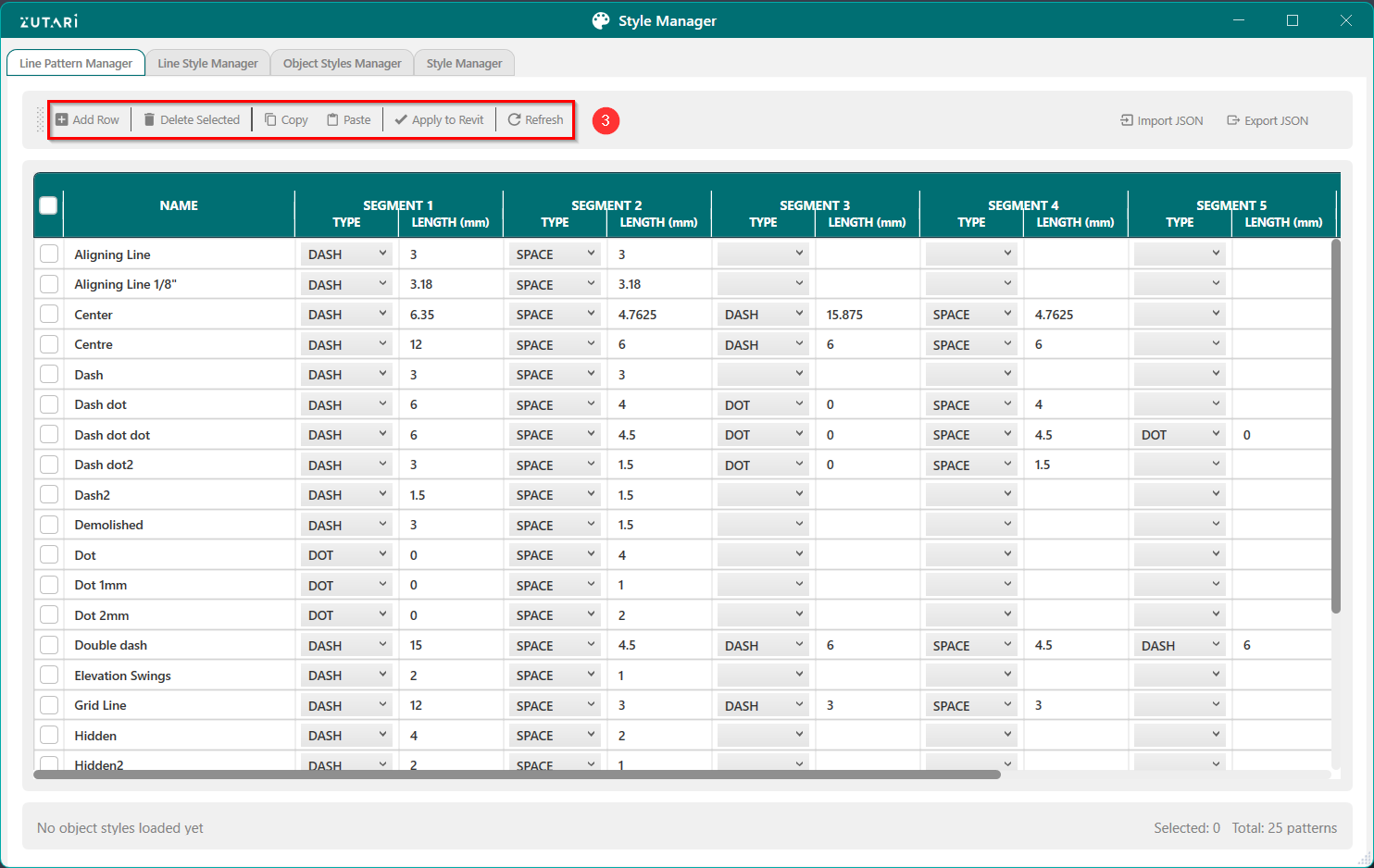
- Create, update, and modify line patterns and apply changes in Revit. The buttons in the left of the Toolbar in figure 1.3 below allows us to create new line patterns, update line patterns and copy existing line patterns to later apply the changes to Revit.
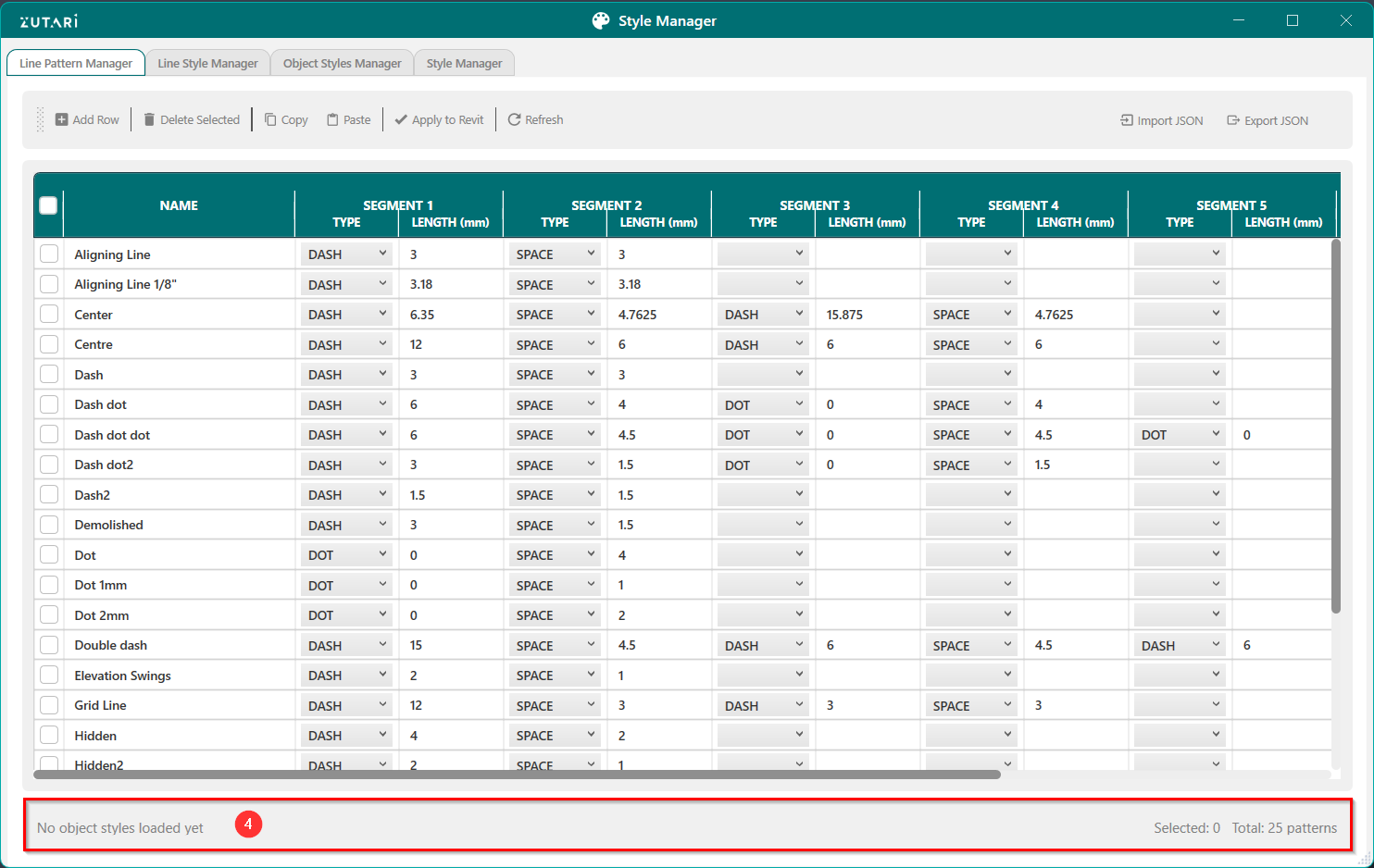
- View status of plugin commands. The status bar shown in figure 1.4 below tracks recenlty created commands and any errors that occured.
-
Line Styles Manager
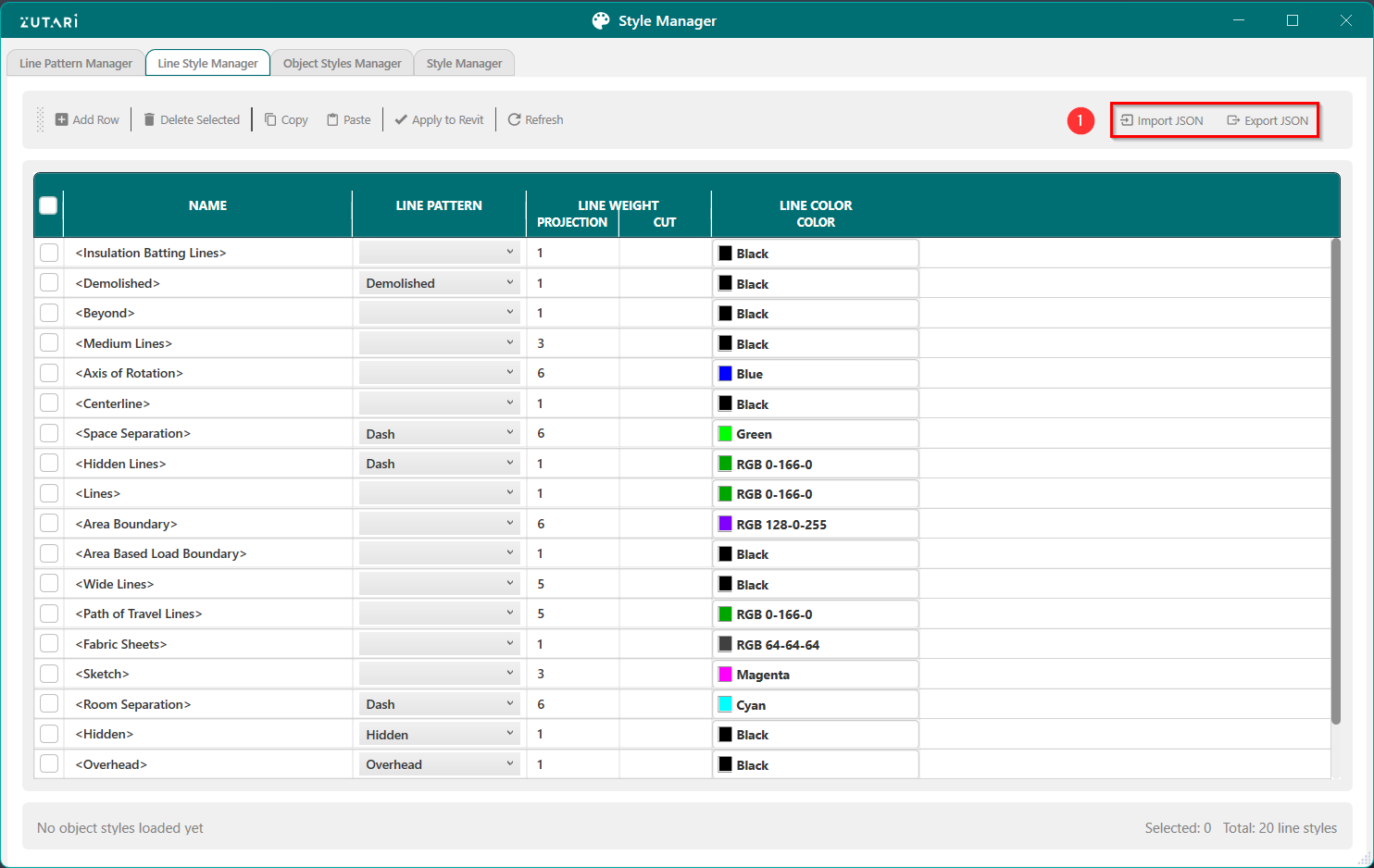
- Import/export JSON configurations to quickly apply standards. The buttons shown in figure 2.1 below allows us to import line styles in the JSON format.
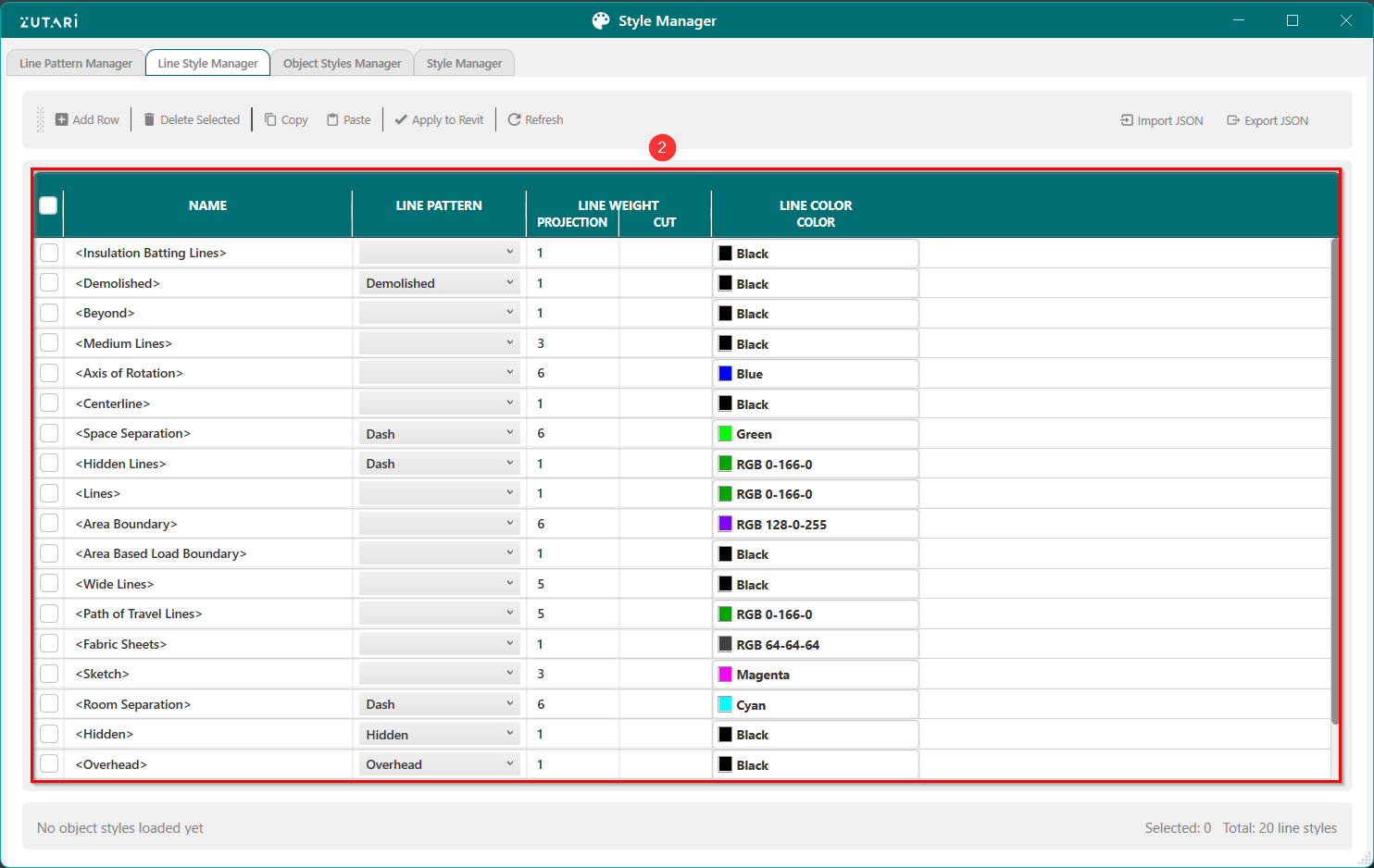
- Manage line styles by mapping patterns, weights, and colors and apply changes to Revit. The viewport shown in figure 2.2 below shows the line styles.
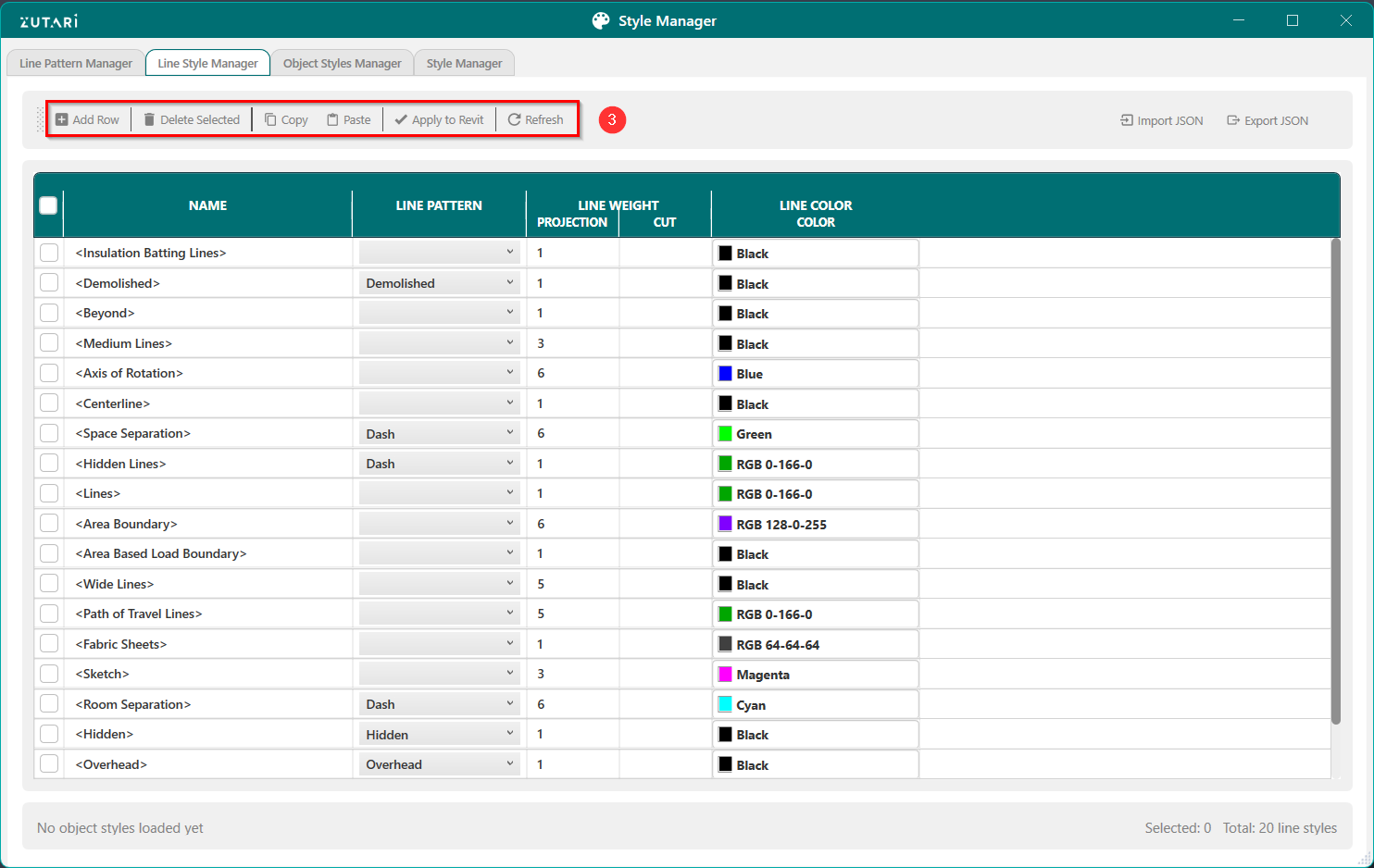
- Create, update, and modify line styles and apply changes in Revit. The buttons in the left of the Toolbar in figure 2.3 below allows us to create new line styles, update line styles and copy existing line styles to later apply the changes to Revit.
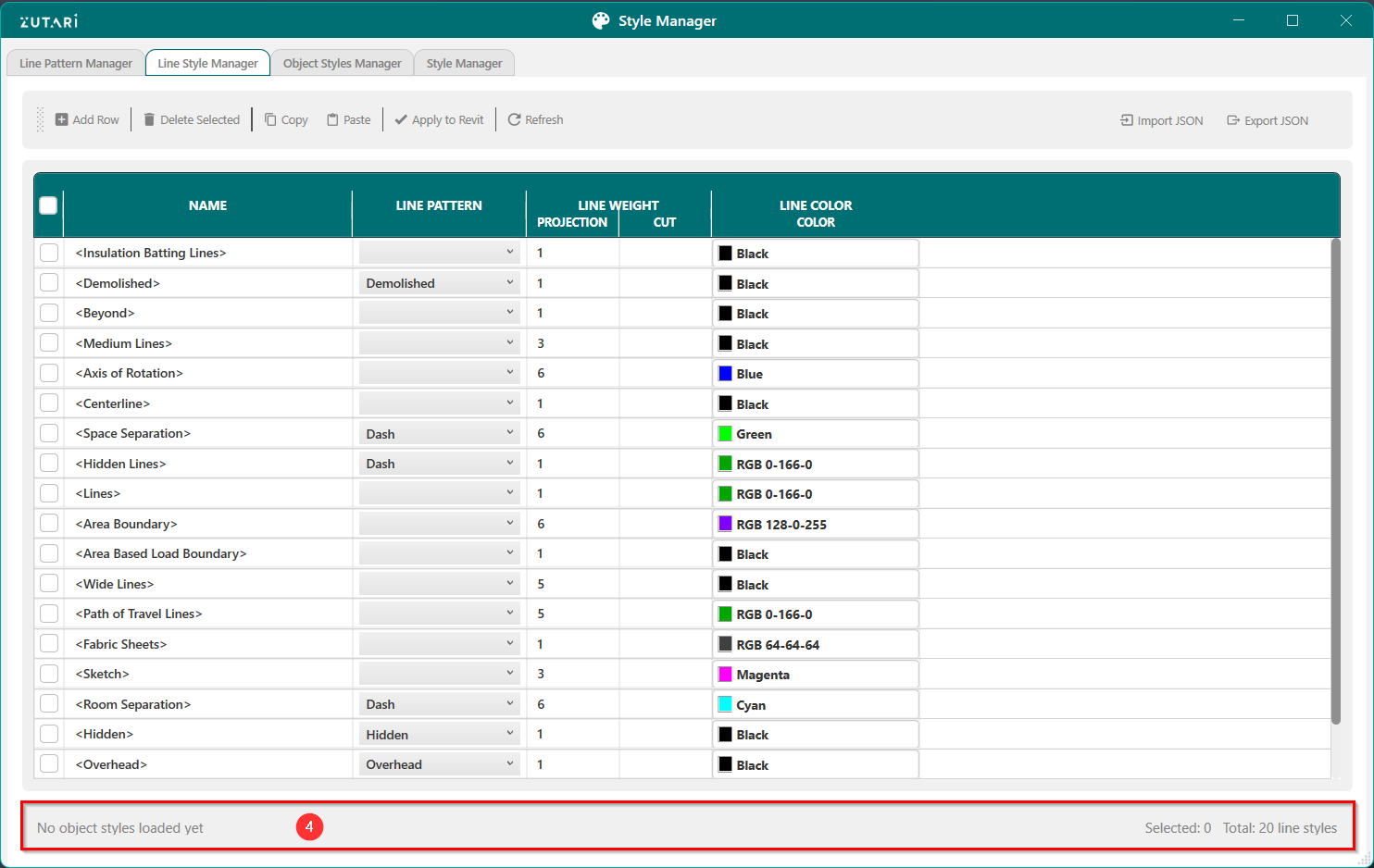
- View status of plugin commands. The status bar shown in figure 2.4 below tracks recenlty created commands and any errors that occured.
-
Object Styles Manager
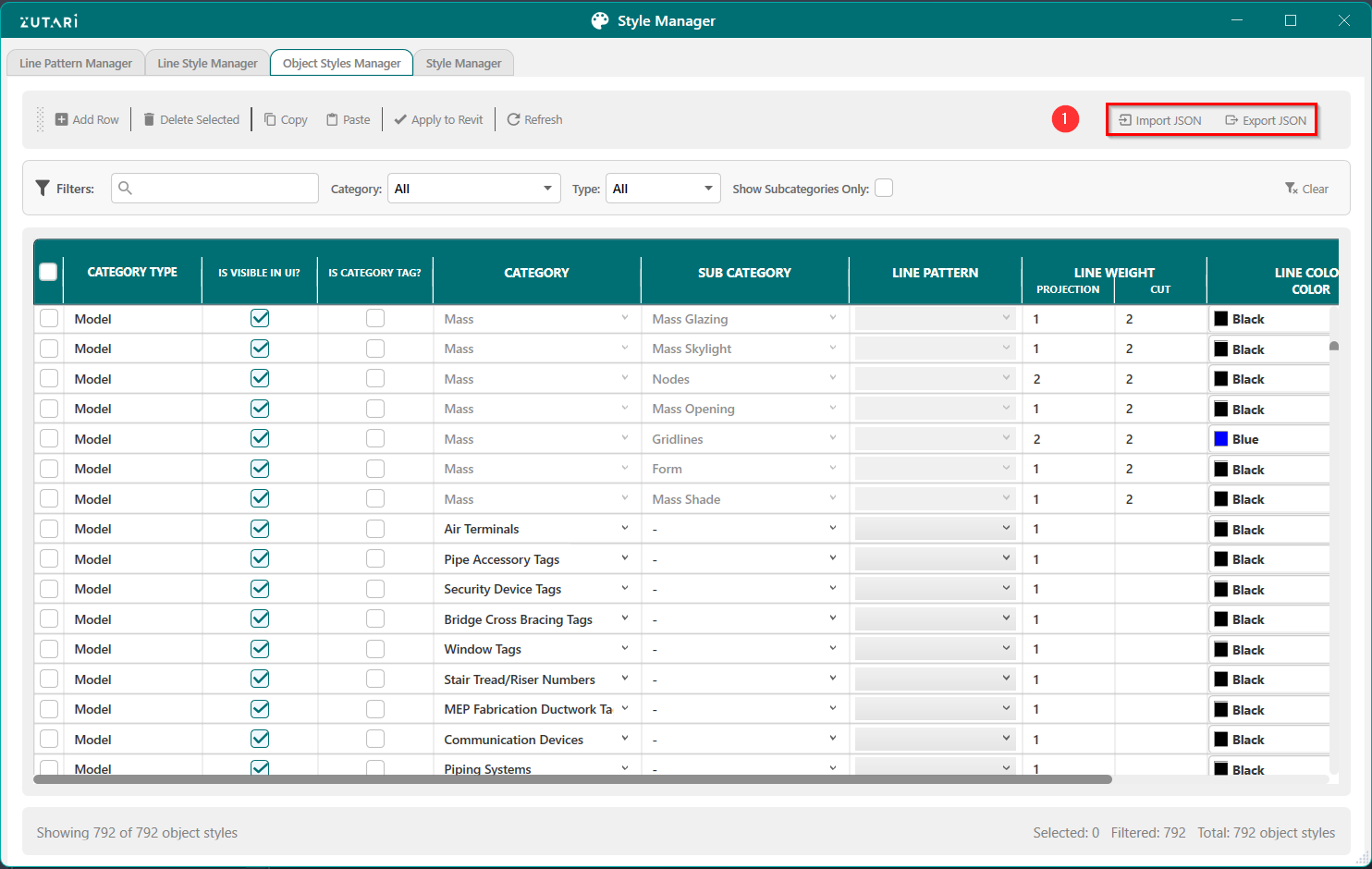
- Import/export JSON configurations to quickly add object styles. The buttons shown in figure 3.1 below allows us to import line styles in the JSON format.
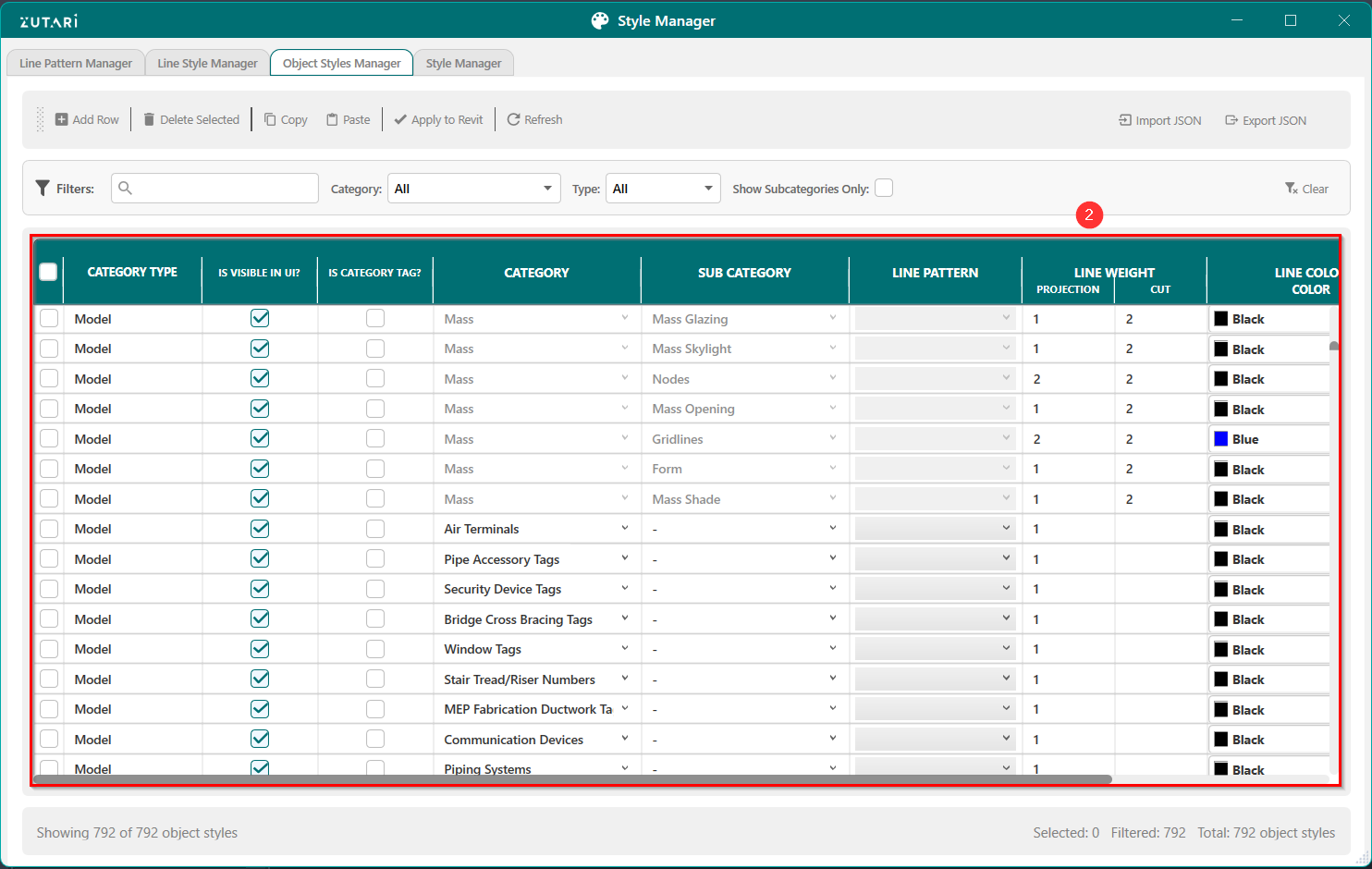
- Manage object styles by adding object styles, adjust visibility, projection, and cut styles for categories and subcategories and apply changes to Revit. The viewport shown in figure 3.2 below shows the object styles.
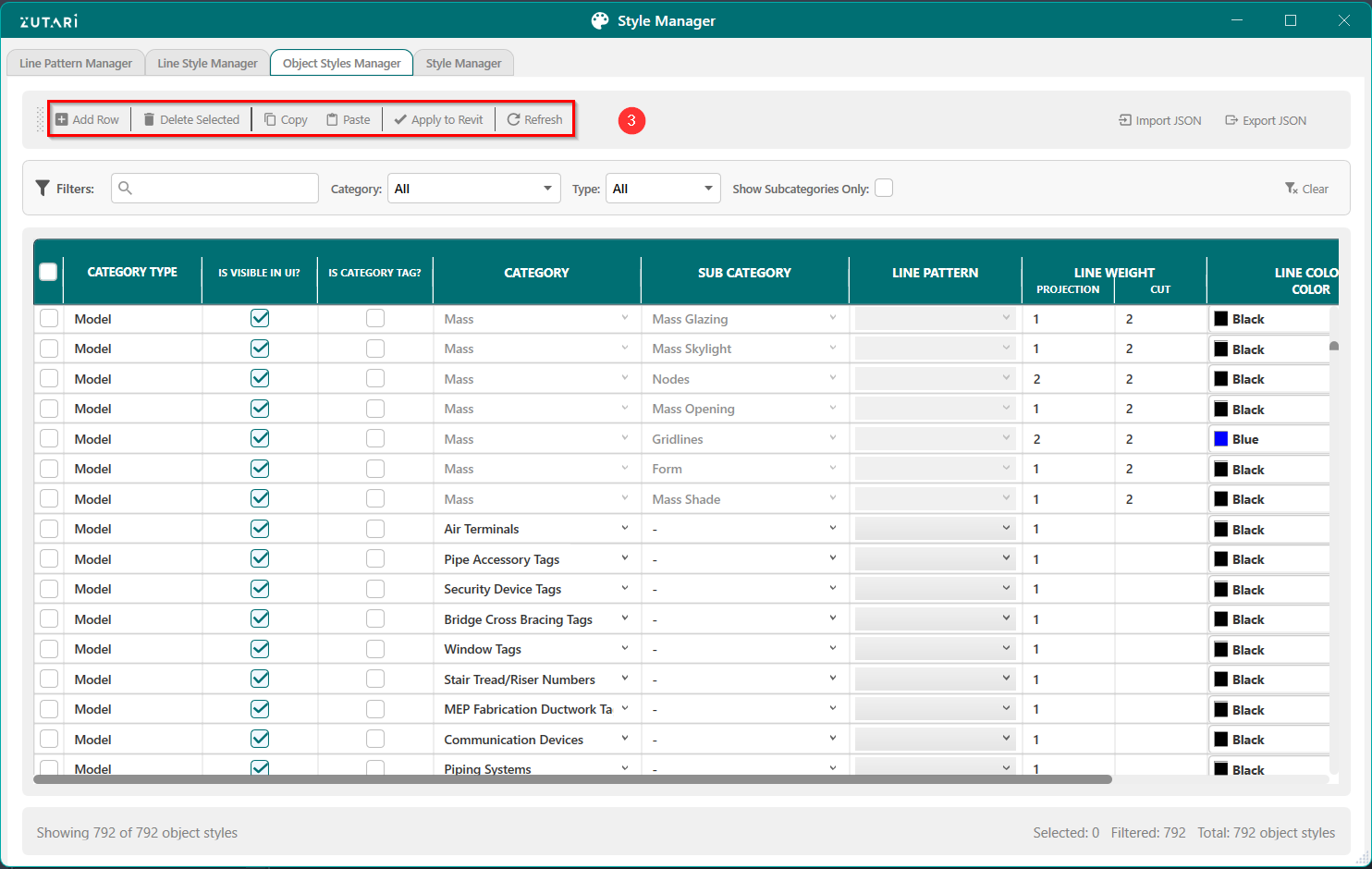
- Create, update, and modify object styles and apply changes in Revit. The buttons in the left of the Toolbar in figure 3.3 below allows us to create new object styles, update object styles and copy existing object styles to later apply the changes to Revit.
- Filter object styles by category or subcategory. Search for specific object style and filter by type of object style to find desired object styles. The filter toolbar shown in figure 3.4 below shows all the features you can use to filter the object styles.
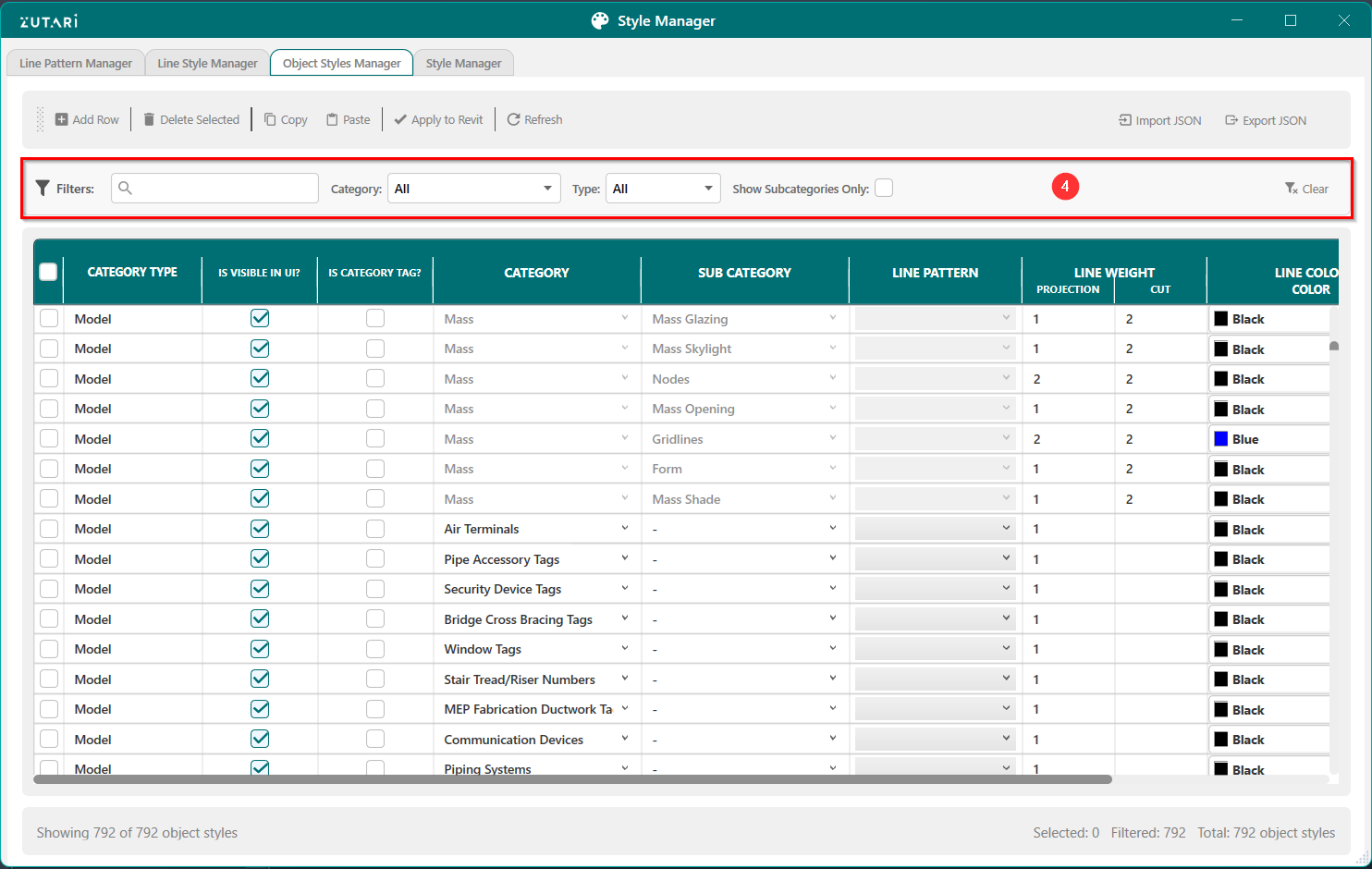
- View status of plugin commands. The status bar shown in figure 2.4 below tracks recenlty created commands and any errors that occured.
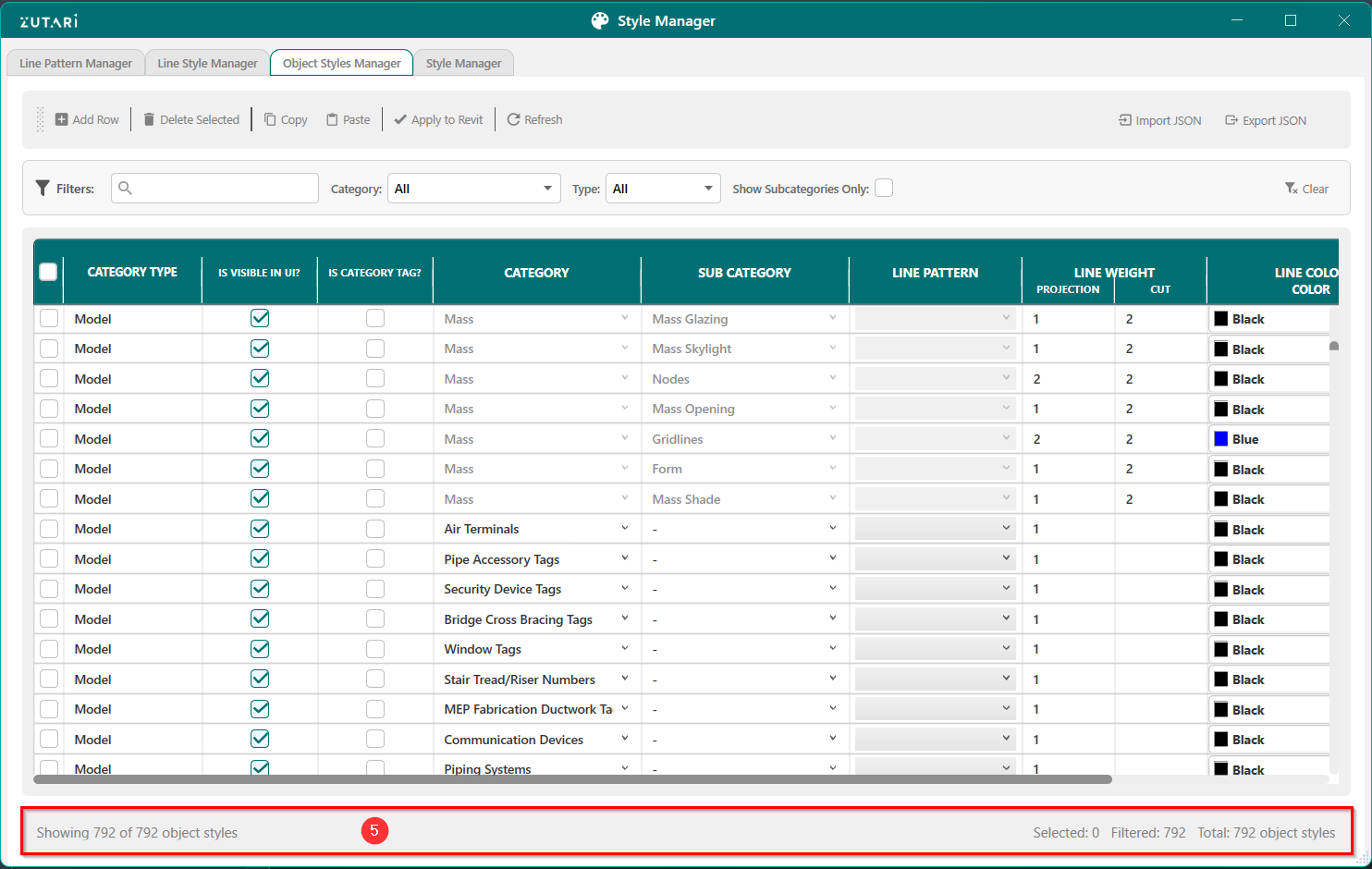
-
Style Comparison
- Import/export JSON configurations to quickly compare object styles, line styles and line patterns. The buttons shown in figure 4.1 below allows us to import line styles, line patterns and object styles in the JSON format.
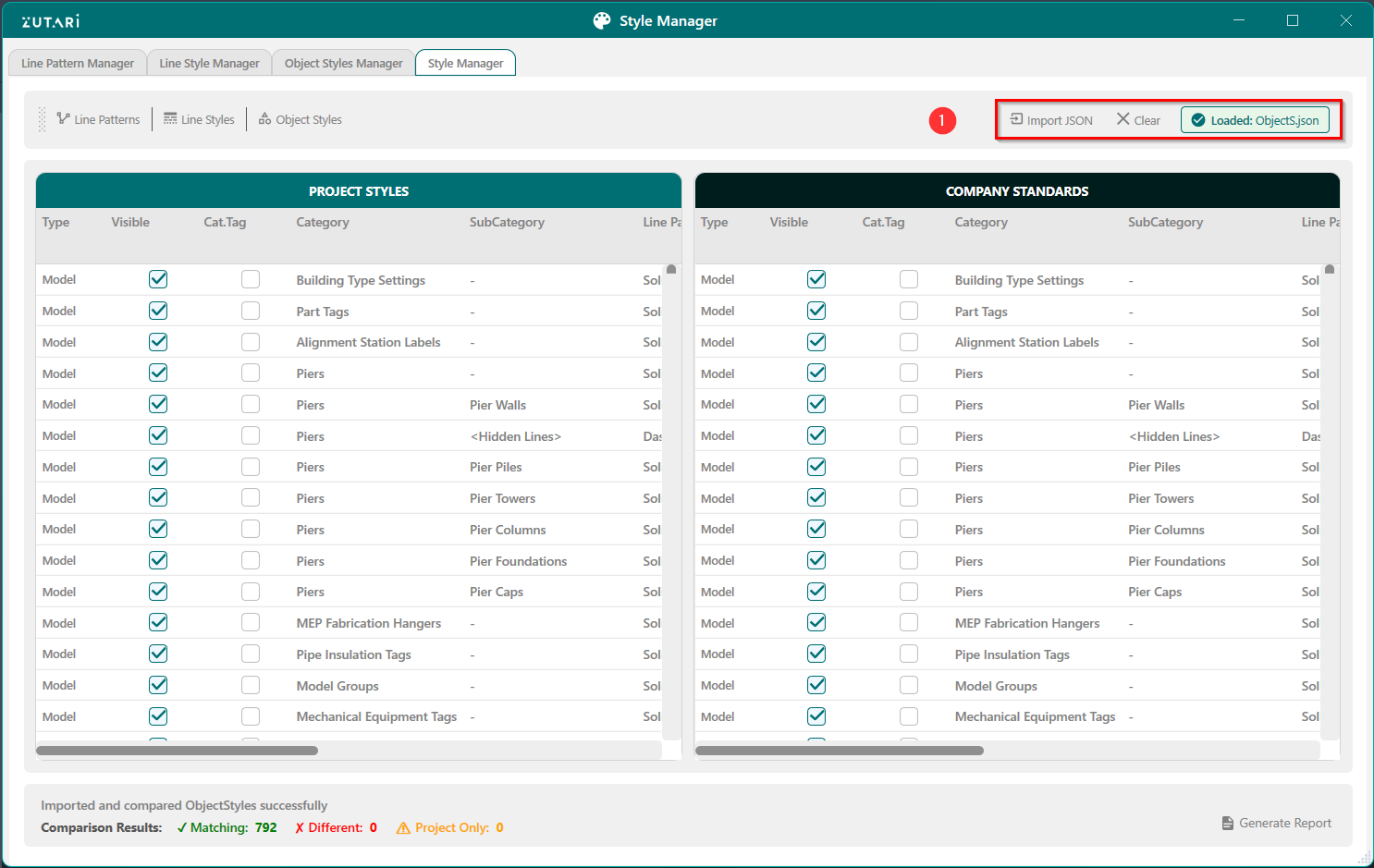
- Compare project styles with company standards using JSON imports. The viewport in figure4.2 below shows how you can identify matching, different, or missing styles. Both viewports scroll together for a syncronized experience to help track maching and different styles.
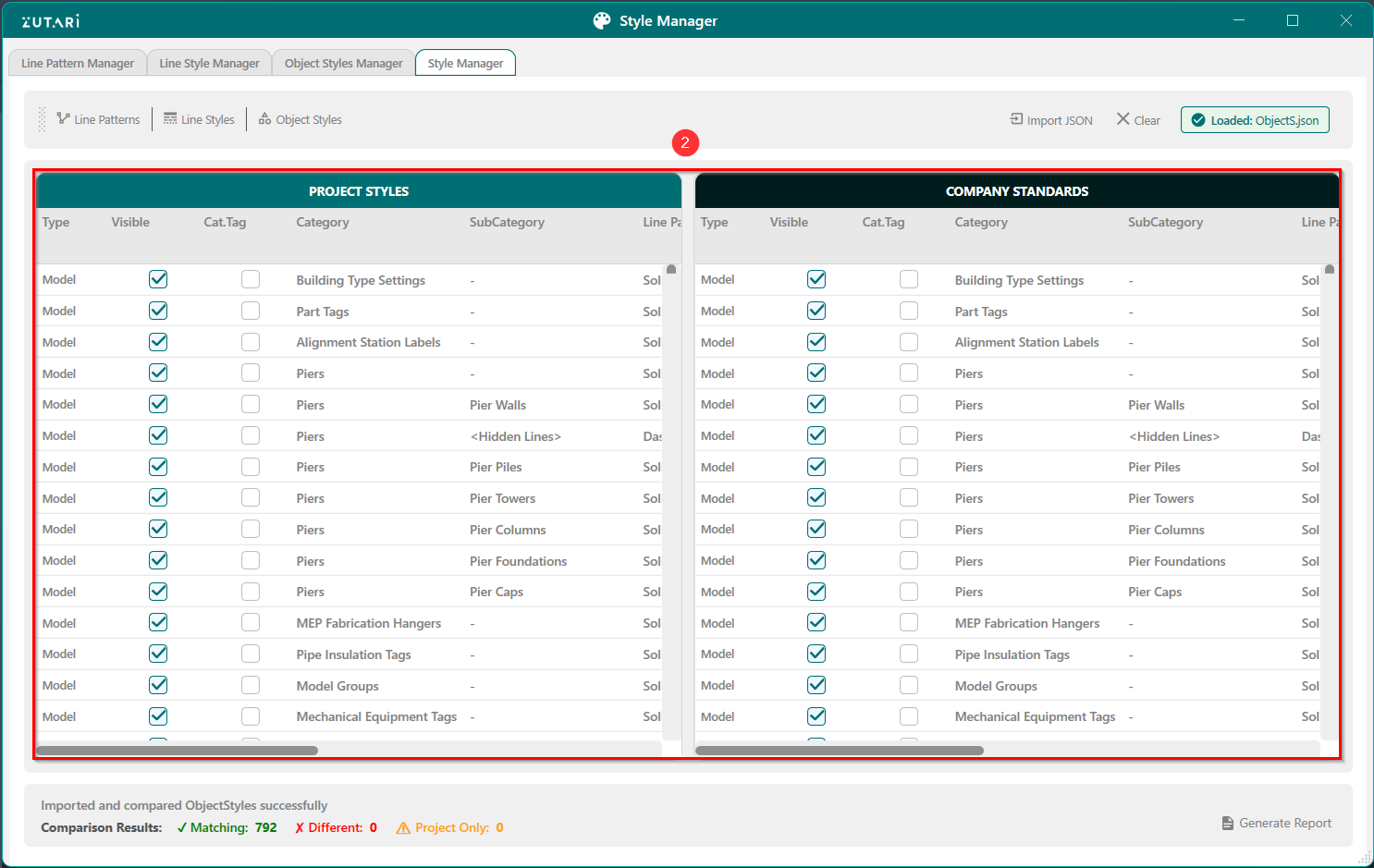
- Toggle between the line patterns, line styles and object styles. The buttons shown in figure 4.3 below allows us to toggle between line styles, line patterns and object styles.
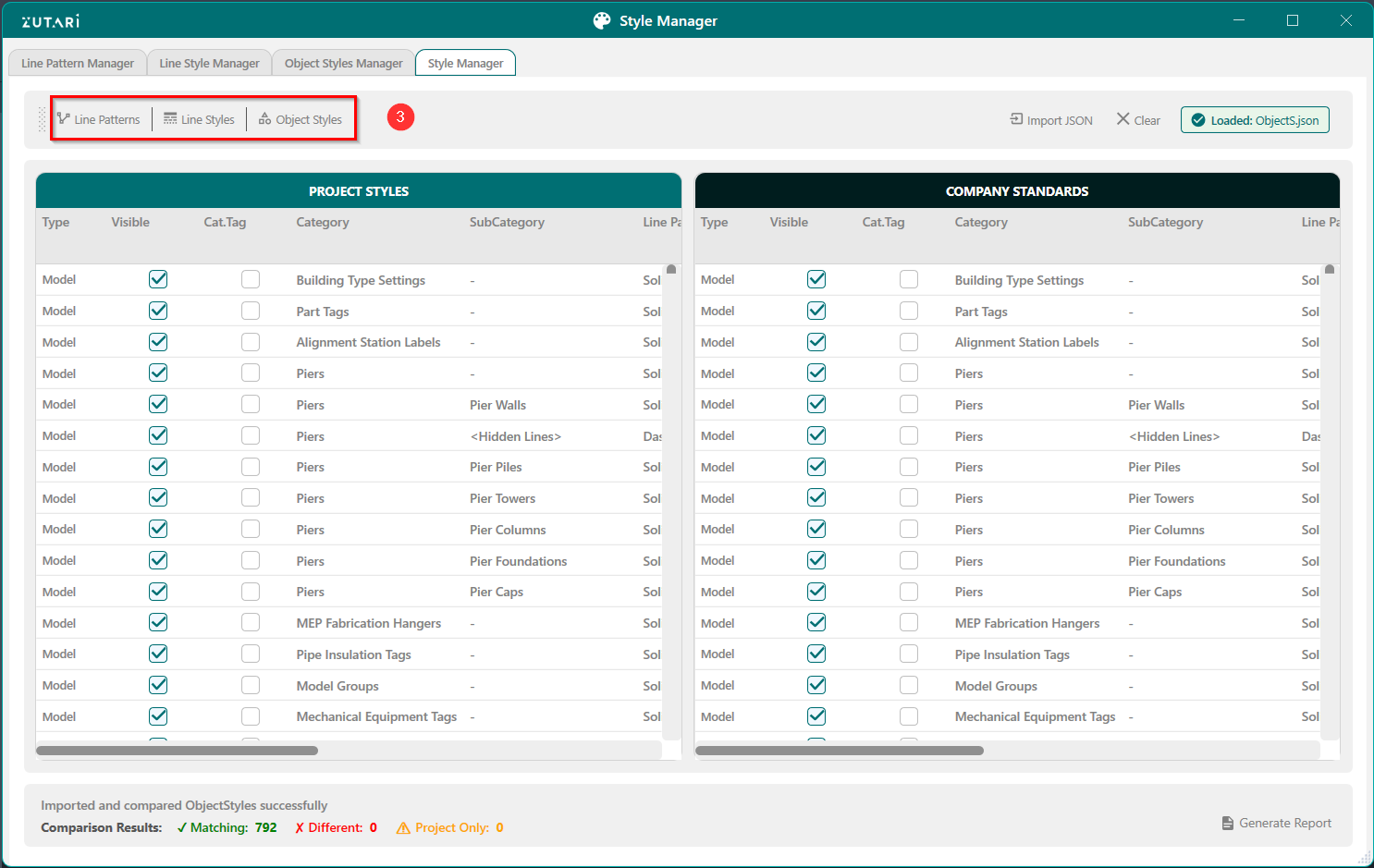
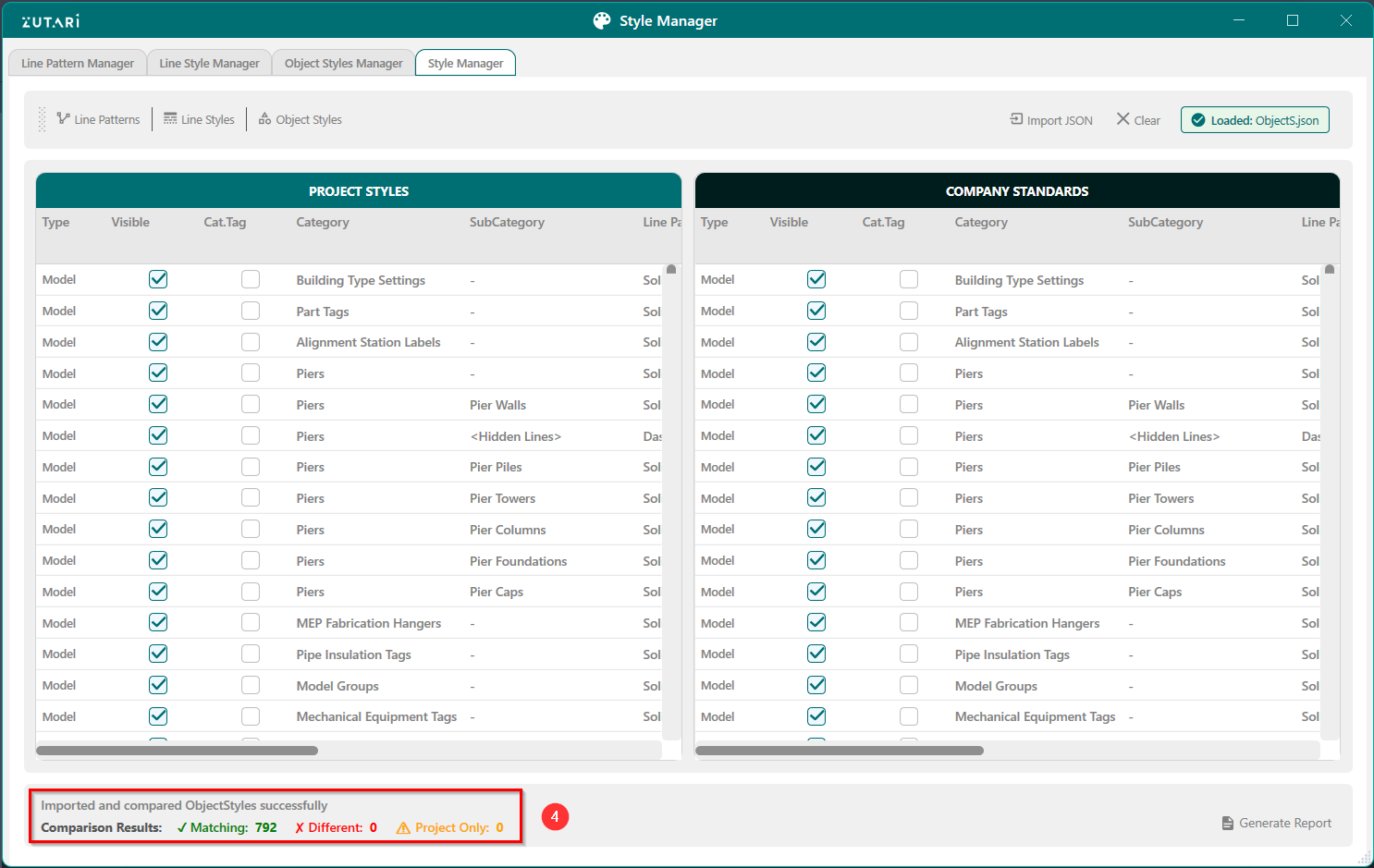
- View the stats of all the macthing and differnt styles in the project agains import JSON styles. The status bar shown in figure 4.4 below lists all the matching and different project styles. This helps enforce compliance with organizational CAD/BIM standards.