Views Sheets Manager
The Views Sheets Manager plugin is a comprehensive Revit automation tool for creating, modifying, organizing, and batch-managing drawing sheets and their associated views. It streamlines sheet creation workflows and introduces advanced view-placement automation powered by geometric curve configuration.
Features:
-
Add Sheets
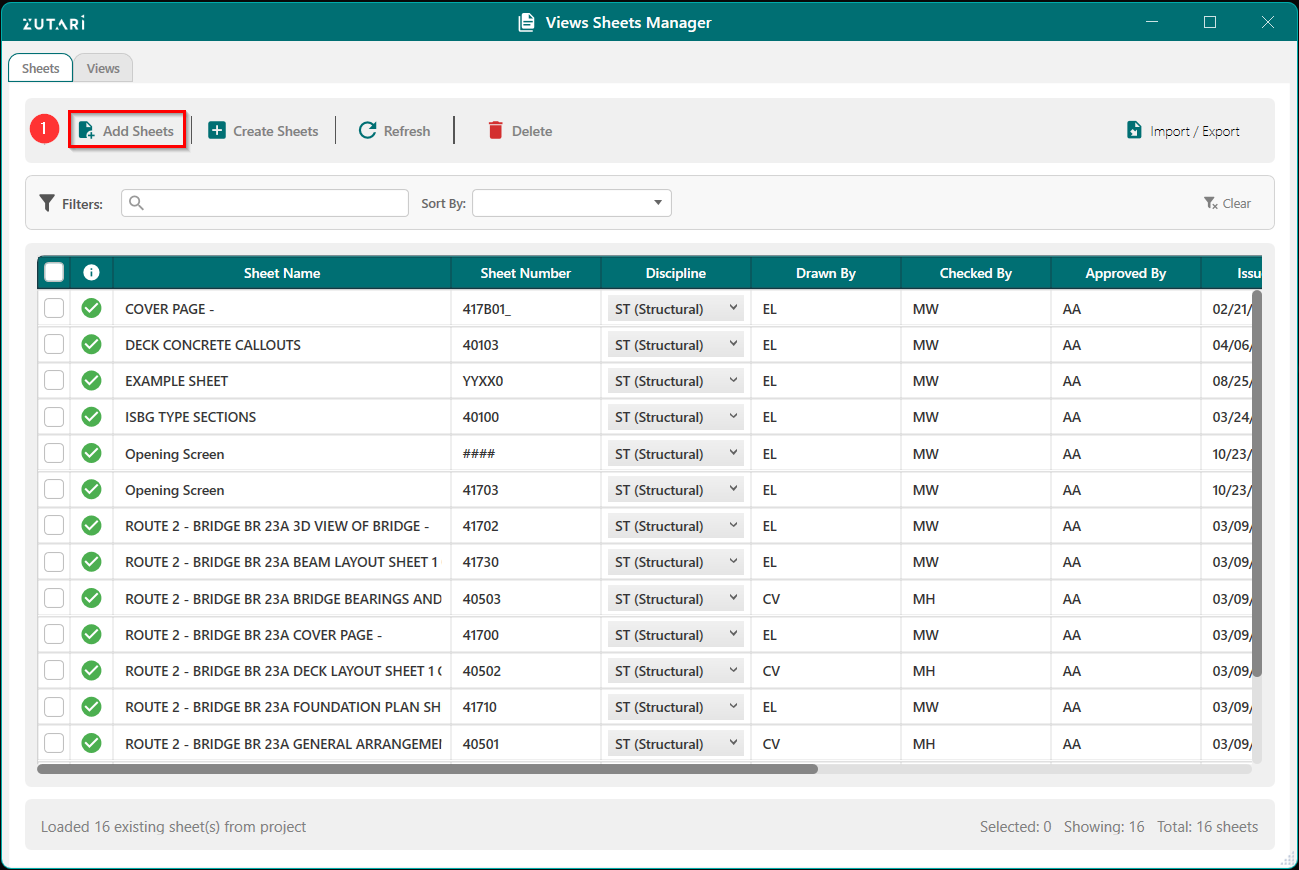
- Add Sheets to the Revit project using the selection configuration UI Tools. The buttons shown in figure 1.1 below allows us to open the selection configuration UI to use any of the selection configuration commands which include pick points, pick line, draw line and create without selection.
-
Sheet Creation Methods
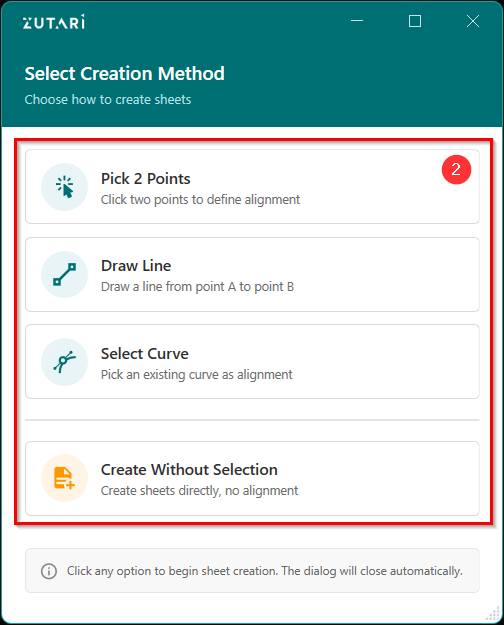
- Create new sheets to add to the Revit project using the selection configuration UI Tools. The buttons shown in figure 1.2 below allows us to open the selection configuration UI to use any of the selection configuration commands which include pick points, pick line, draw line and create without selection.
- Pick 2 Points: Define alignment by selecting two points. Generates aligned floor plan and elevation views automatically.
- Draw Line: Draw a line in the model to set the alignment direction. Views are generated and placed based on this line.
- Select Curve: Use any model curve as the alignment reference for automatic view creation and placement.
- Create Without Selection: Create a standard sheet with no alignment. Ideal for placing existing views or creating sheets from Excel.
-
Sheet Creation Selection
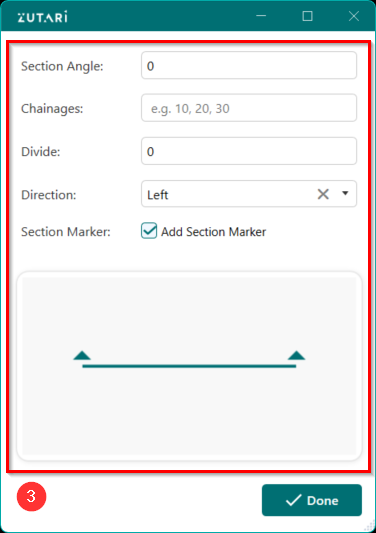
- Set the properties of the sheet curve. Figure 1.3 below shows the sheet selection configuration user interface which allows you to configure the section angle, if you would like to add sections at chainages, wheather you would like to divide the created line, the direction o the section (left/right) and the option to add a section marker to the selected curve or not.
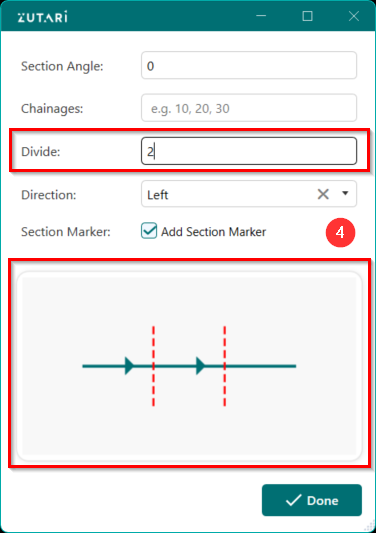
- Figure 1.4 below shows the option to divide the line into multiple segments assuming you would want to add mutiple sheets at the division points.
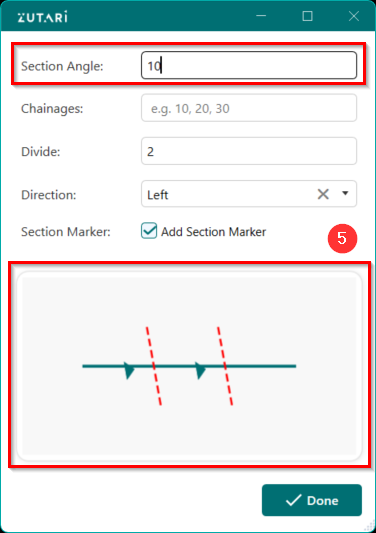
- Figure 1.5 below shows the option to update the section angle for a slightly angled section.
-
Add Sheets Excel
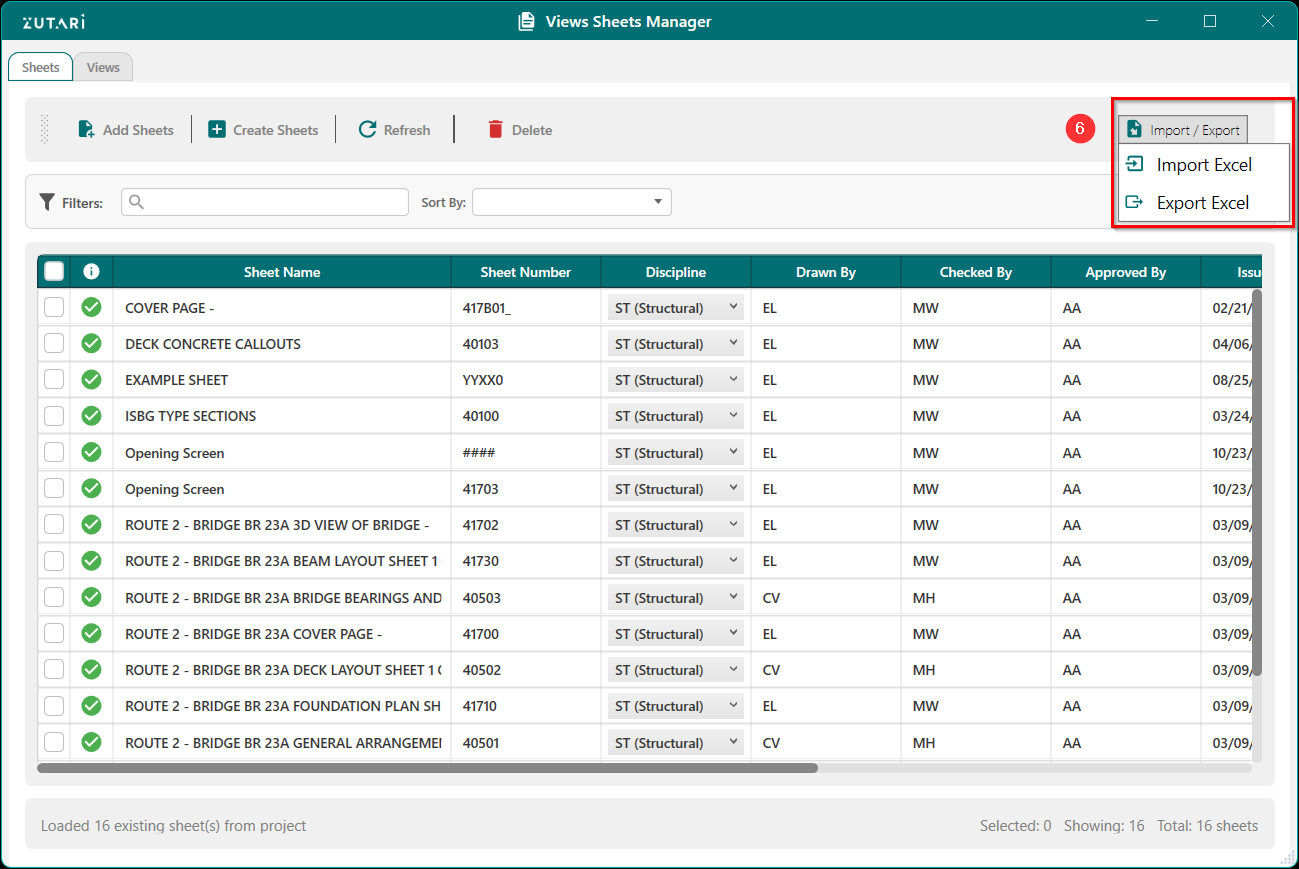
- Users can export sheets and their parameters for team collaboration and batch updates. We can then import the excel file to bulk-create sheets, update sheet numbers and names, and modify custom parameters in bulk. Figure 1.6 below shows the buttons to import/export to excel.
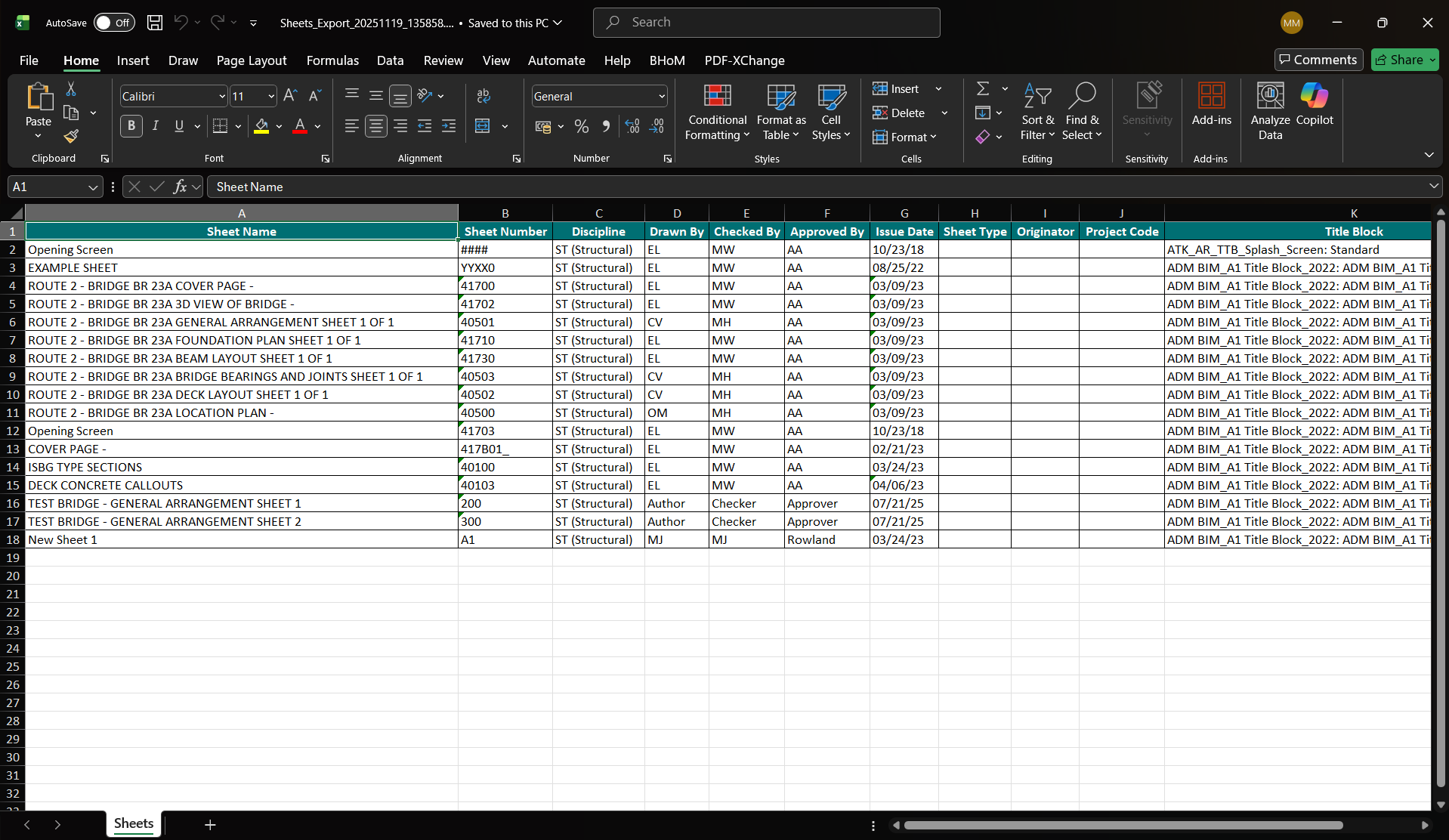
- Figure 1.7 below shows the excel export of the sheets which can be modified and imported back.
-
Filter Sheets
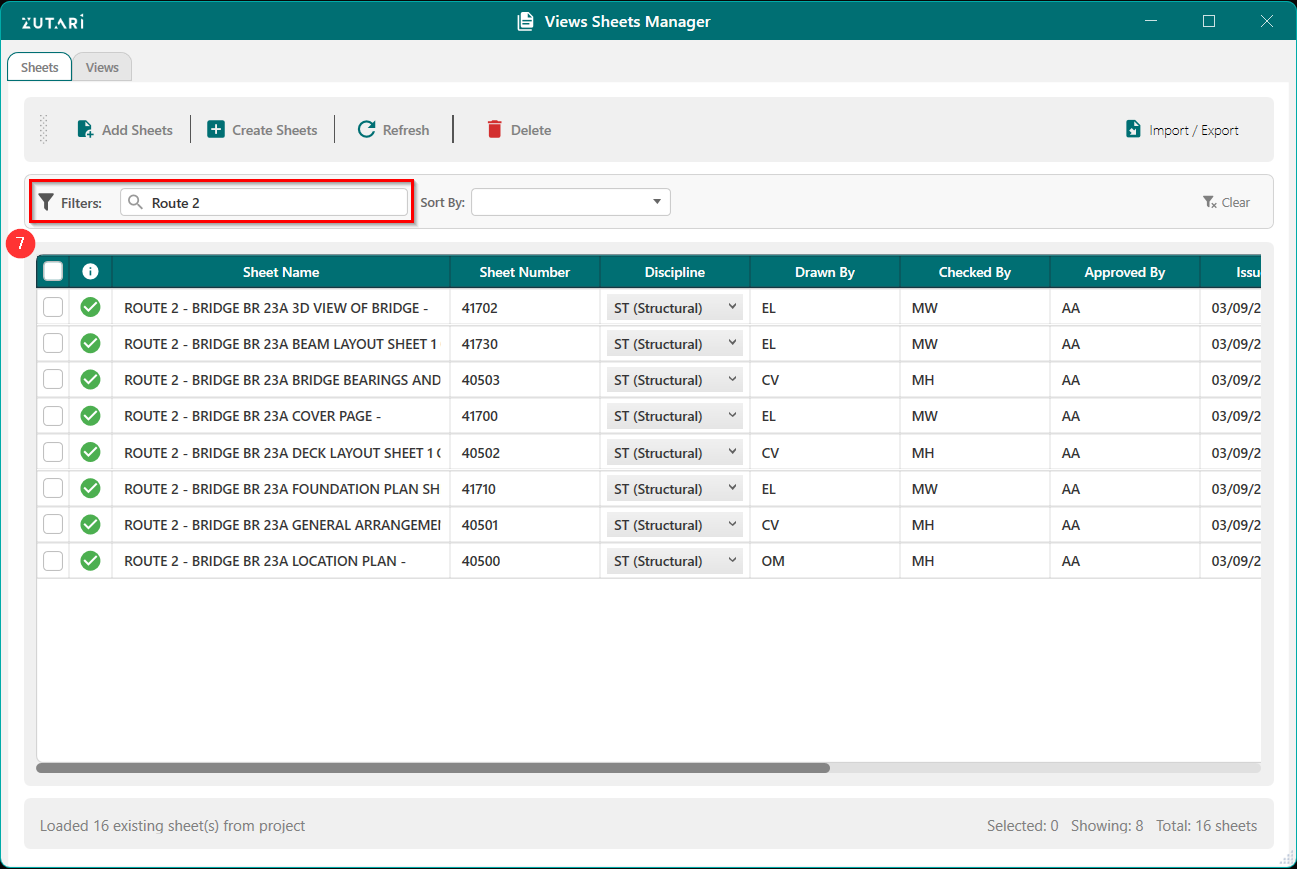
- Filter sheets in the Revit project by searching for specific sheets. Figure 1.8 below shows the filter sheets section where the user can search for a specific sheet.
-
Sort Sheets
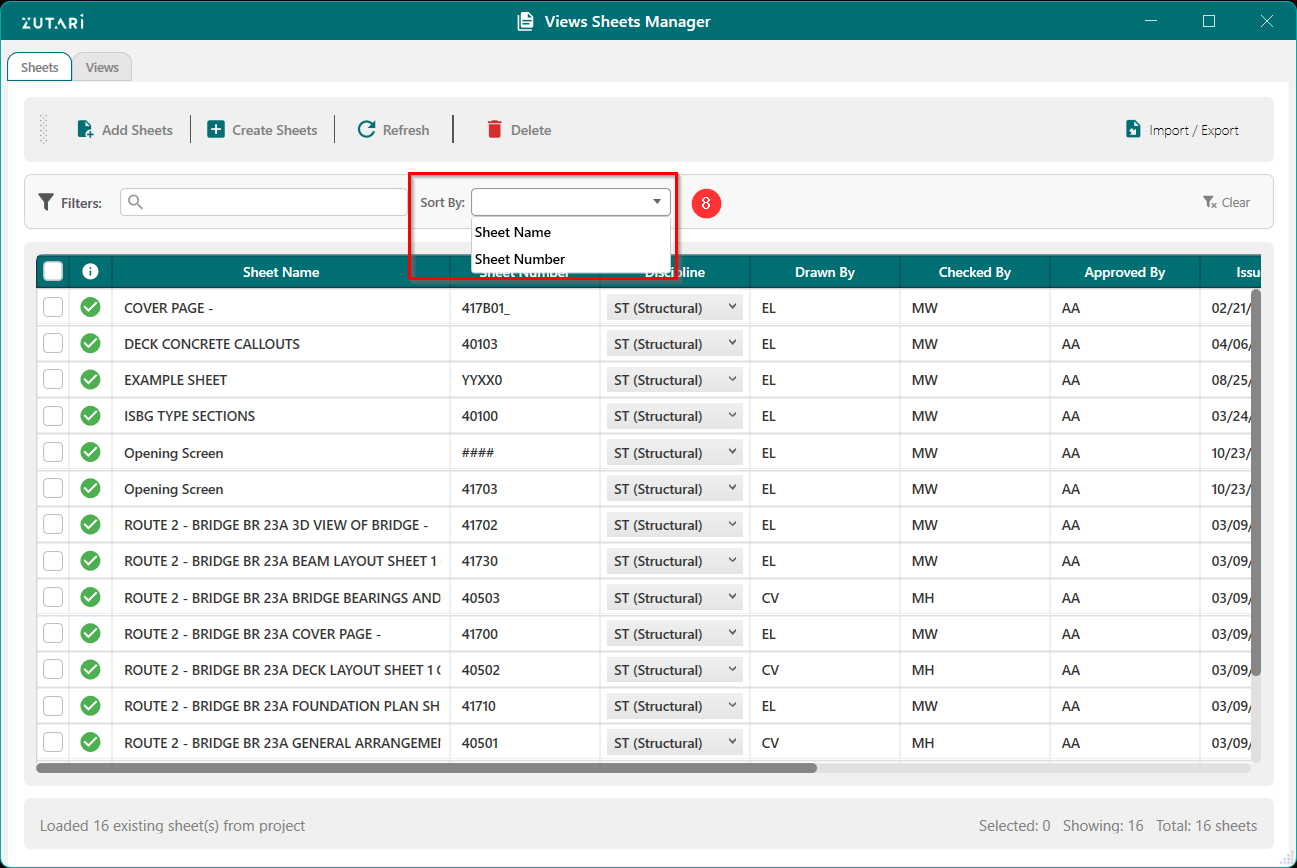
- Sort sheets in the Revit project by sorting sheets by sheet name or sheet number. Figure 1.9 below shows the filter sheets section where the user can search for a specific sheet.
-
Created Sheets In UI
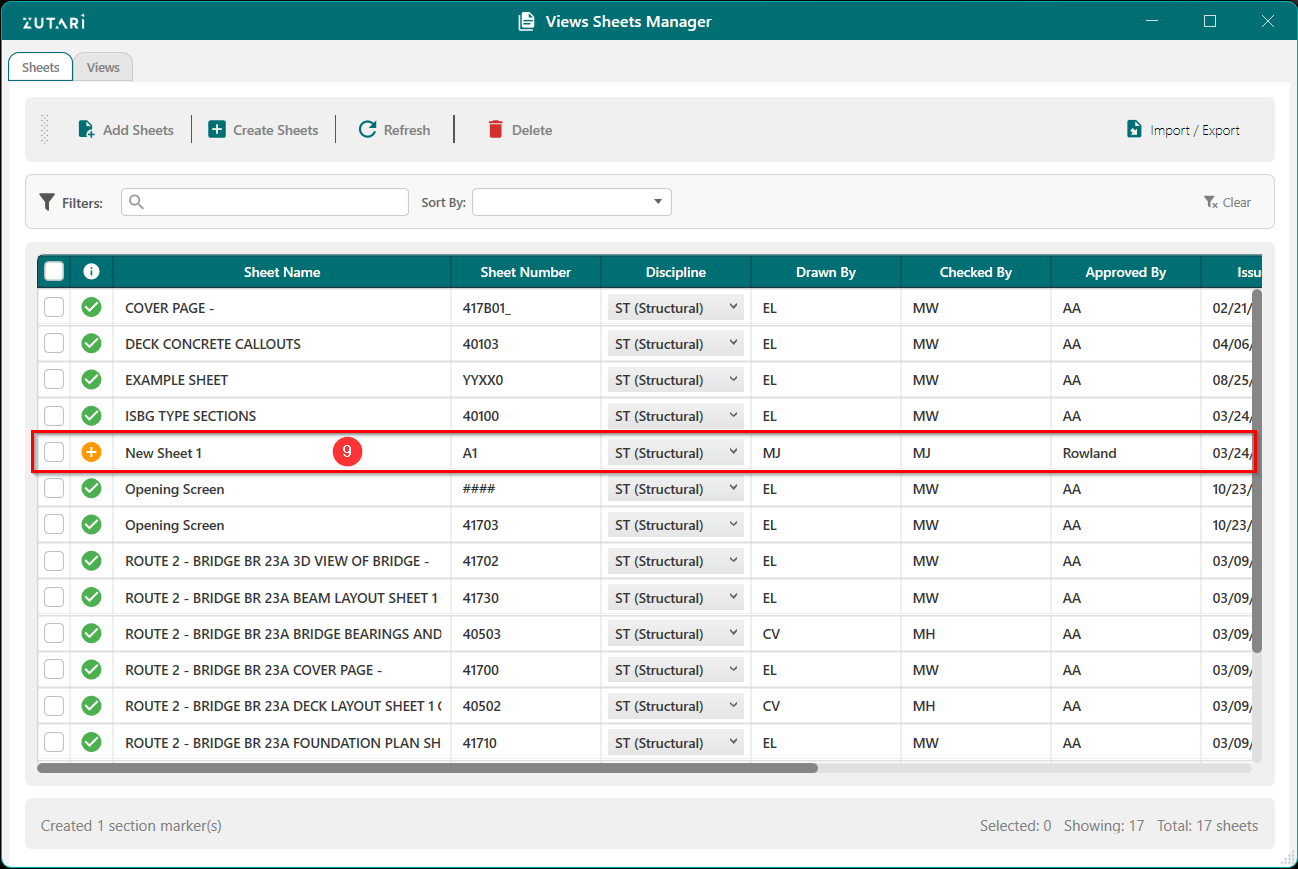
- Created sheets will have a + in the status and existing sheets will display with a green tick. Figure 1.10 below shows the created sheet with the + status. We can then modify the sheets properties before creating the sheet in the Revit Enviroment.
-
Create Sheets In Revit
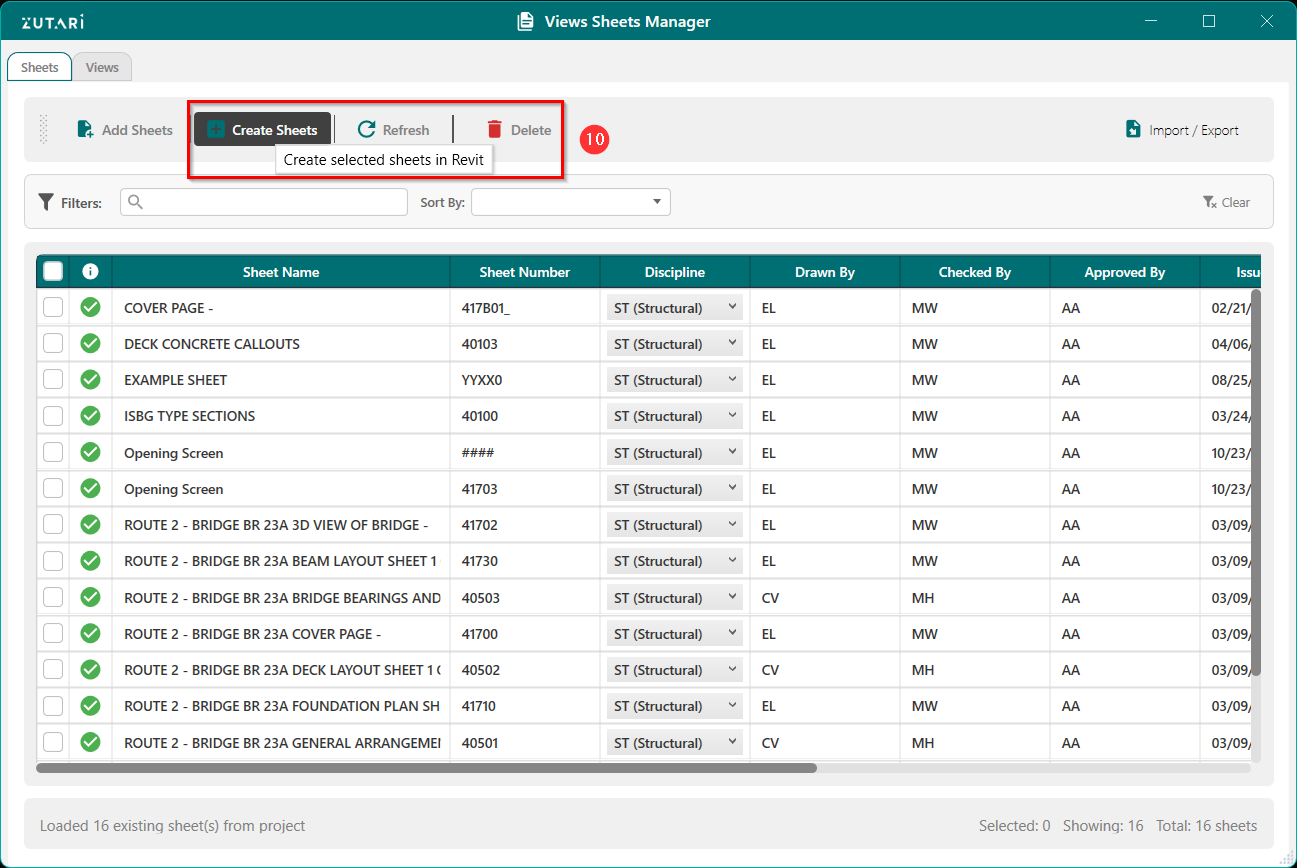
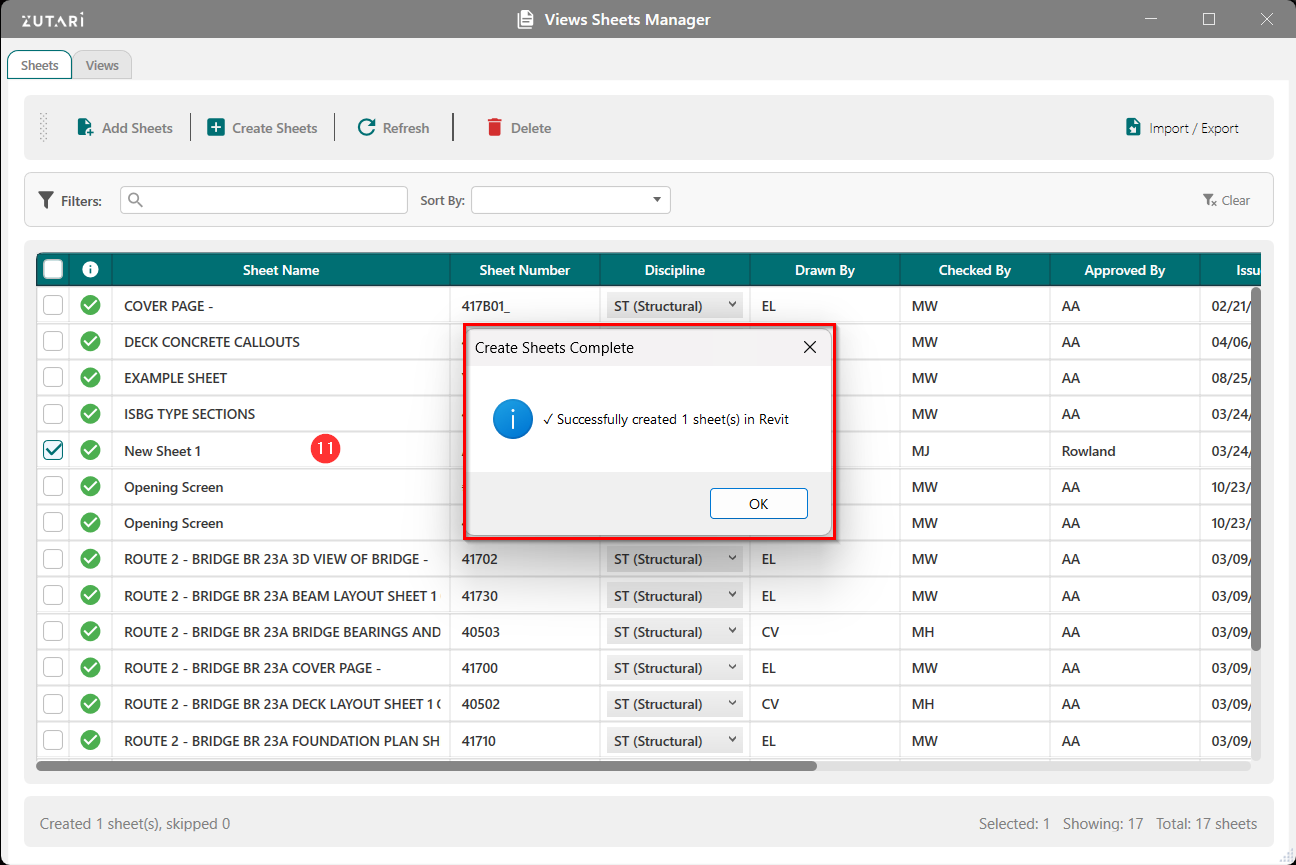
- Create sheets in revit by checking the sheet created in the UI and using the Create Sheets button. Figure 1.11 below shows the button to create the sheet in Revit.
-
Created Sheets In Revit
- Created sheets will have a yellow 🟨+ in the status and existing sheets will display with a ✅. Figure 1.12 below shows the created sheet with the yellow 🟨+ status. We can then modify the sheets properties before creating the sheet in the Revit Enviroment.
-
Refresh Sheets In Revit
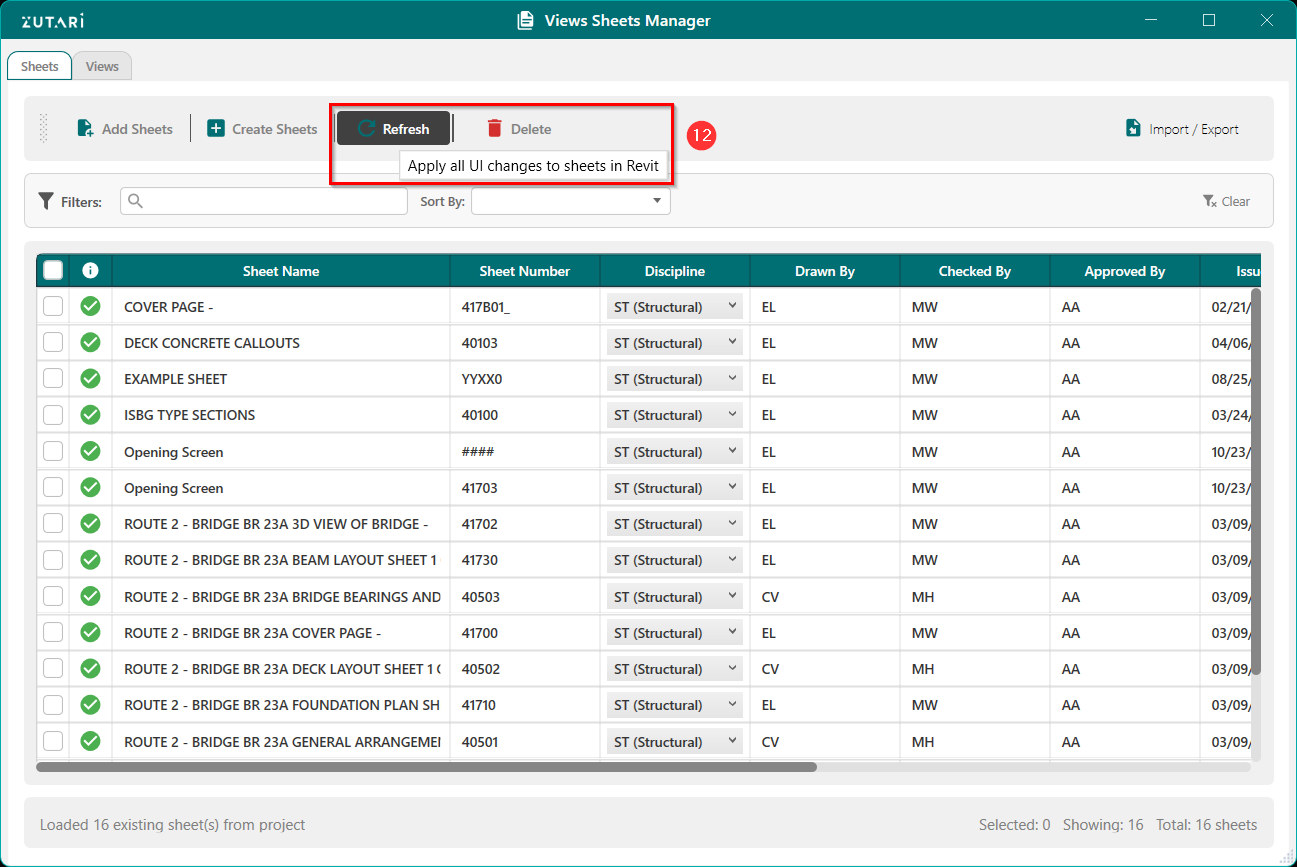
- Refresh sheets in Revit by applying all sheet changes in the UI to the Sheets in Revit. Figure 1.13 below shows the button to refresh the sheets in Revit.
-
Delete Sheets In UI
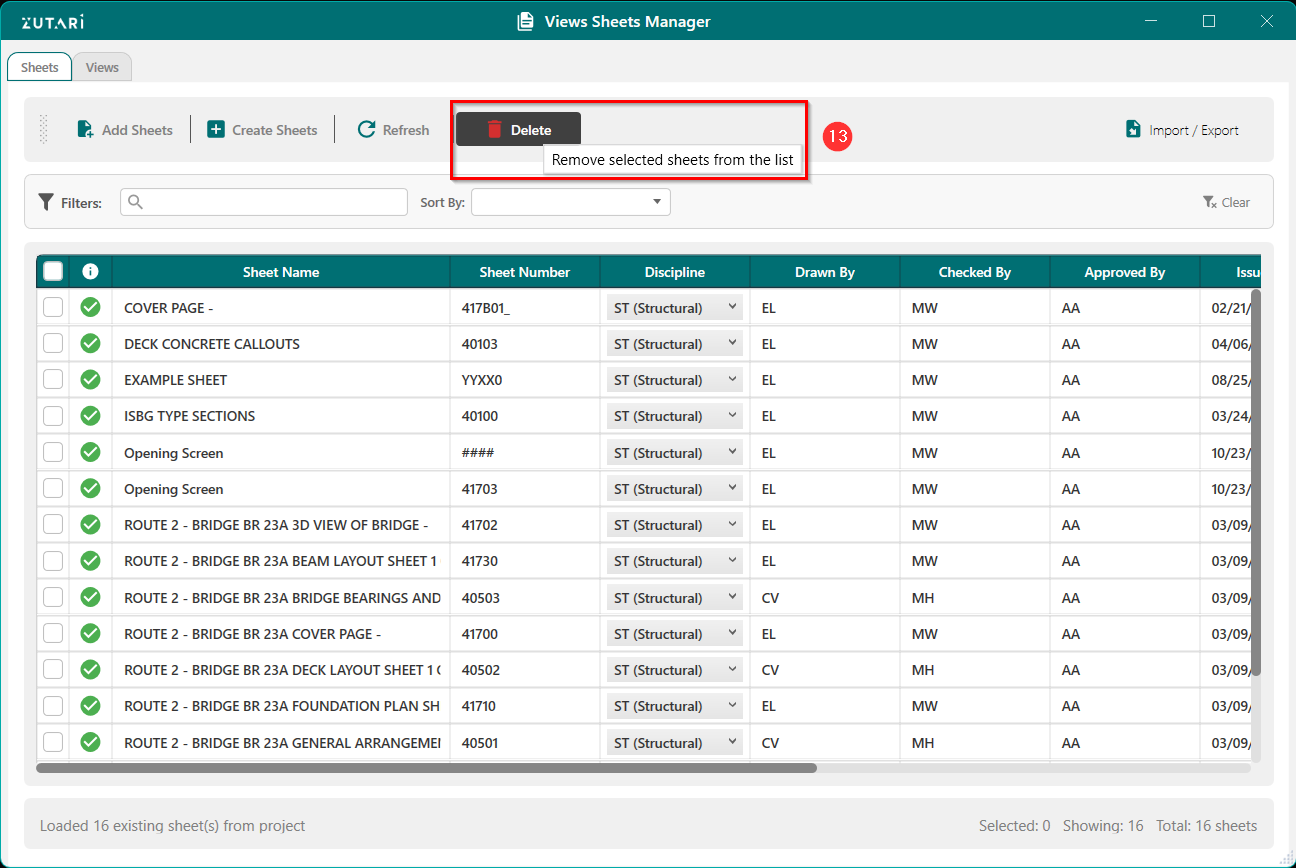
- Delete selected sheets from the app, this will not delete sheets in Revit. Figure 1.14 below shows the button to delete the sheets in the UI.
-
Views Manager
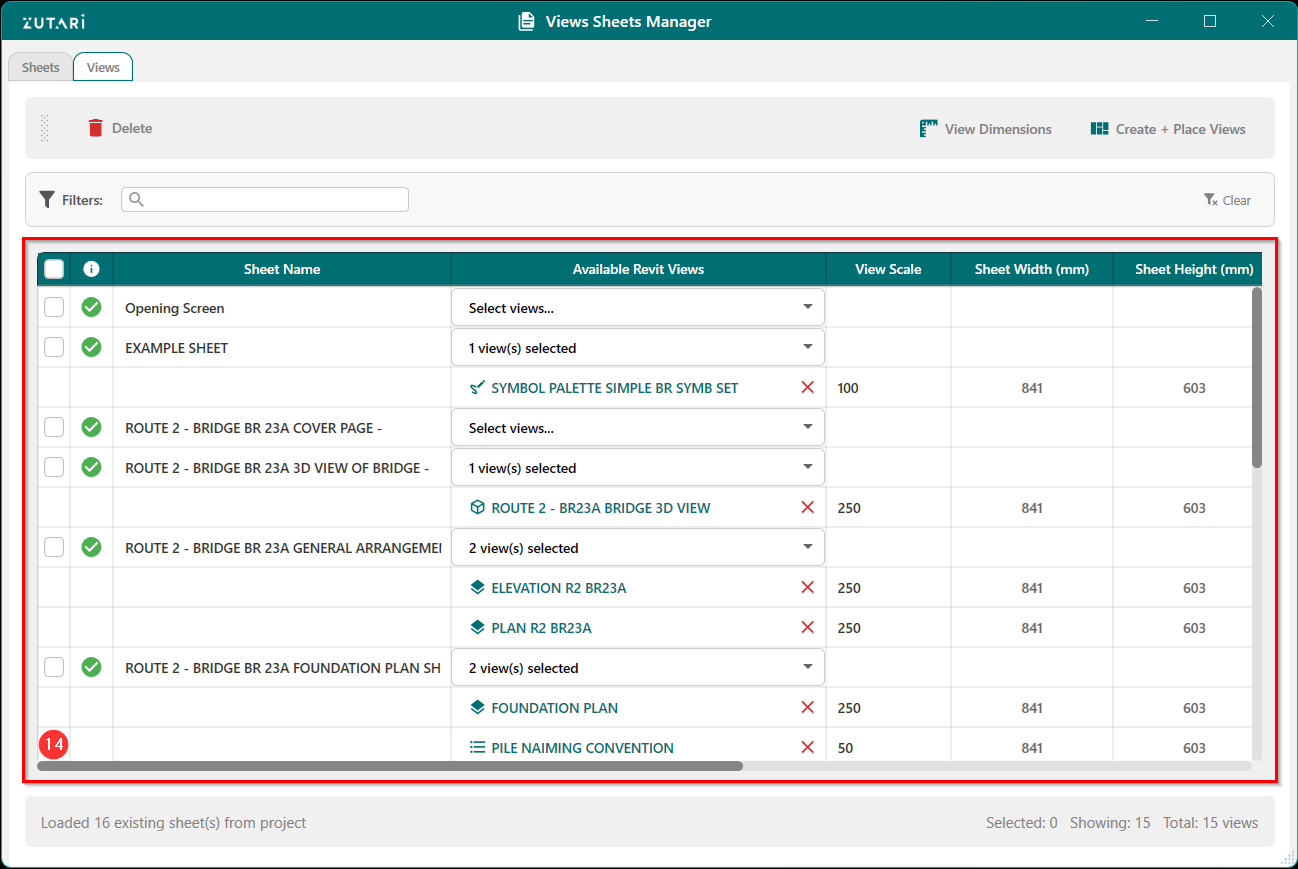
- Displays all views currently placed on the selected sheet and views created using the selection tools. Figure 1.15 below shows all the views for the sheets in Revit and sheets created using the selection tools.
-
Views Manager Filter
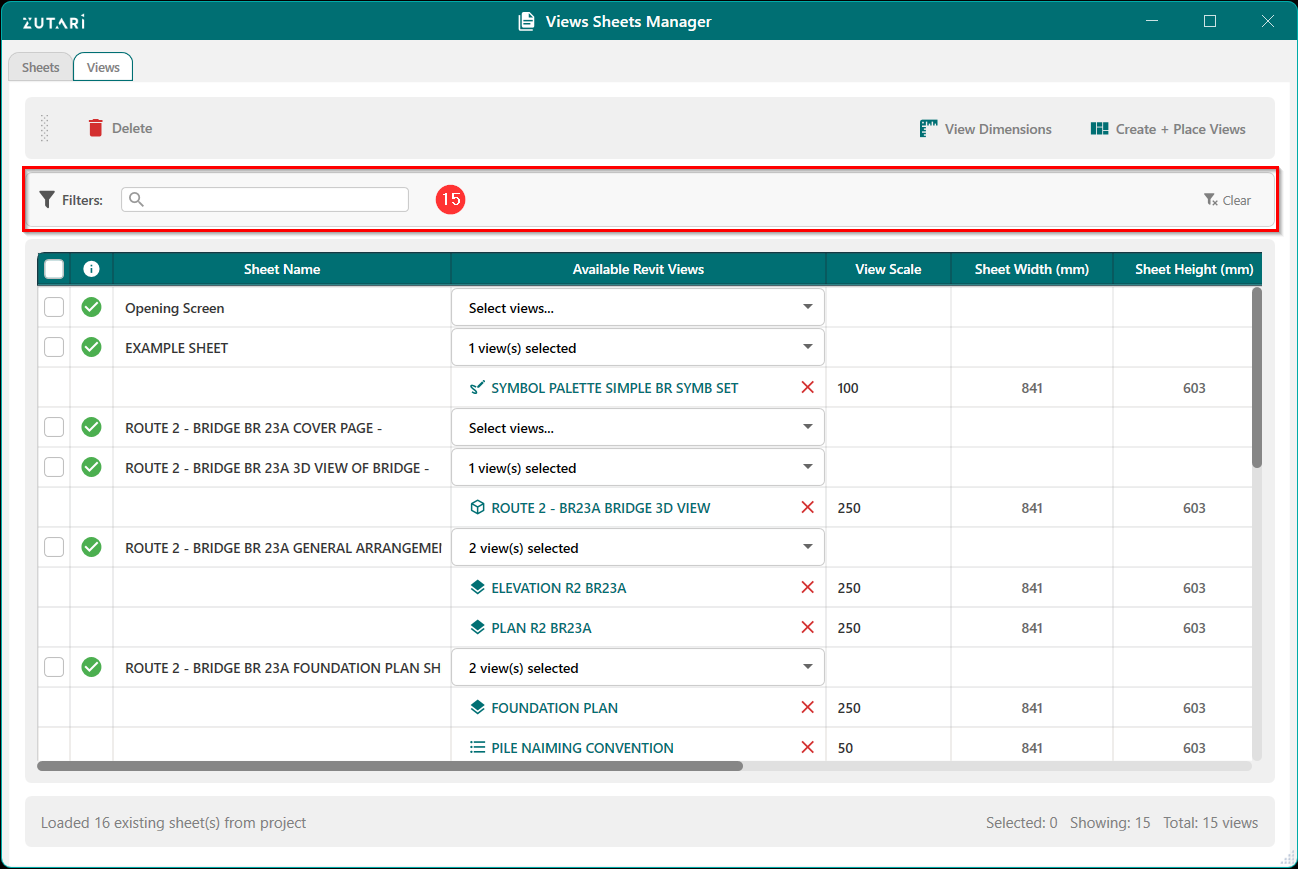
- Filter sheets in the views tab by searching for specific sheets. Figure 1.16 below shows the search bar users can use to search for specific sheets.
-
Views Manager Add Views
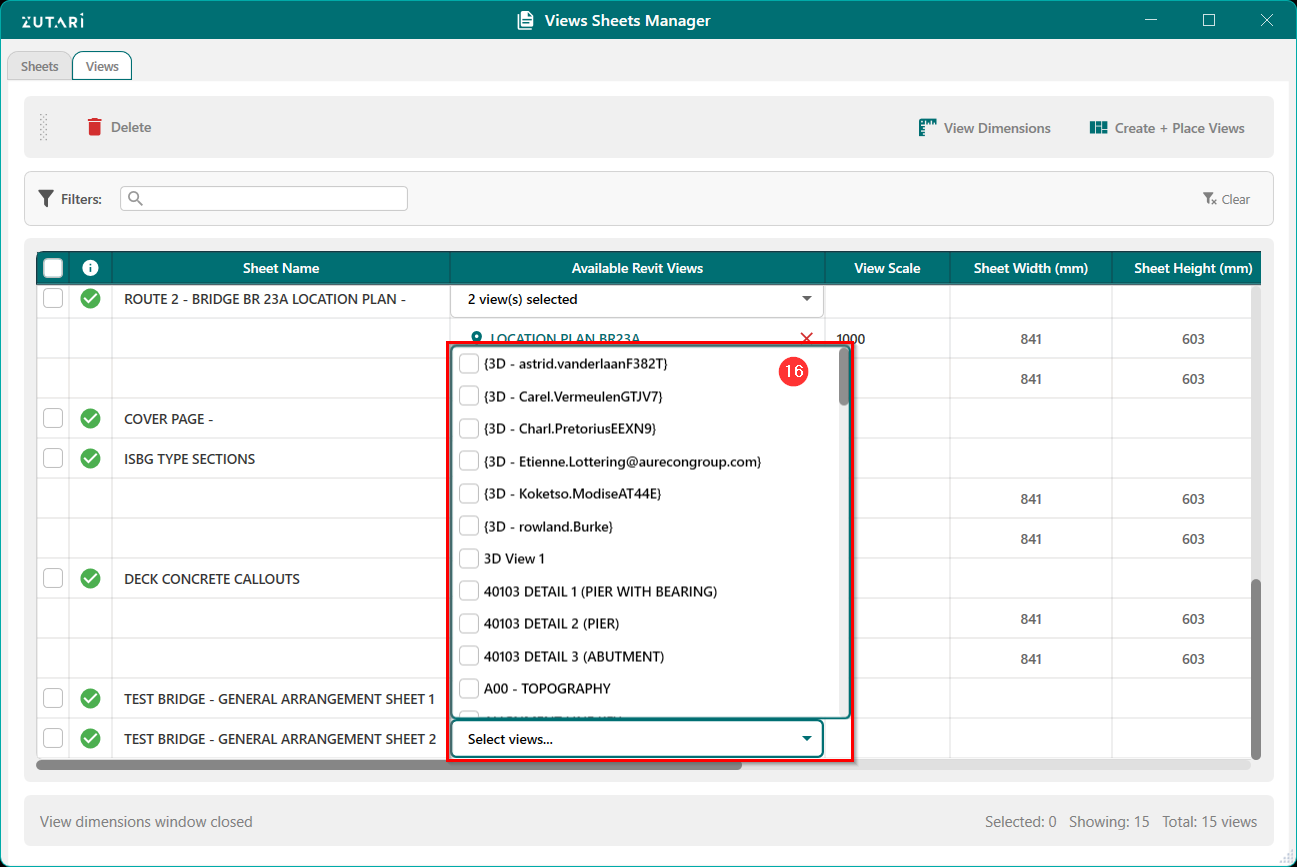
- Add existing views to sheets with no views. Sheets created using selection methods will only have plan and elevation views available and sheets created without selection methods will have all the views available to place on the sheet. Figure 1.17 below shows all the available views in Revit which can be added to the selected sheet.
-
Views Manager Added Views
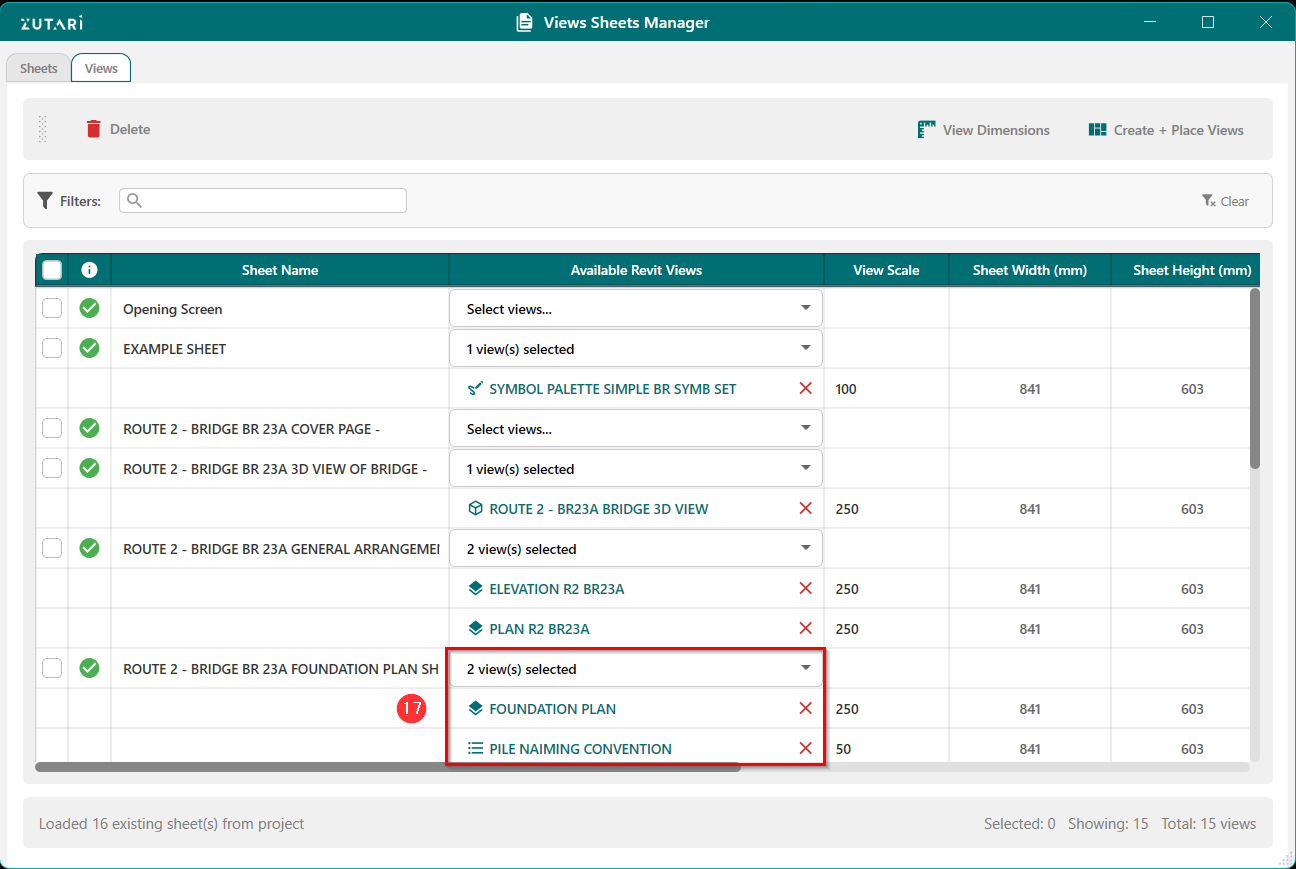
- Added views will be shown in the drop down with associted icons. Figure 1.18 below shows the selected views which will be added to the sheet.
-
Views Manager Added Views Selection Options
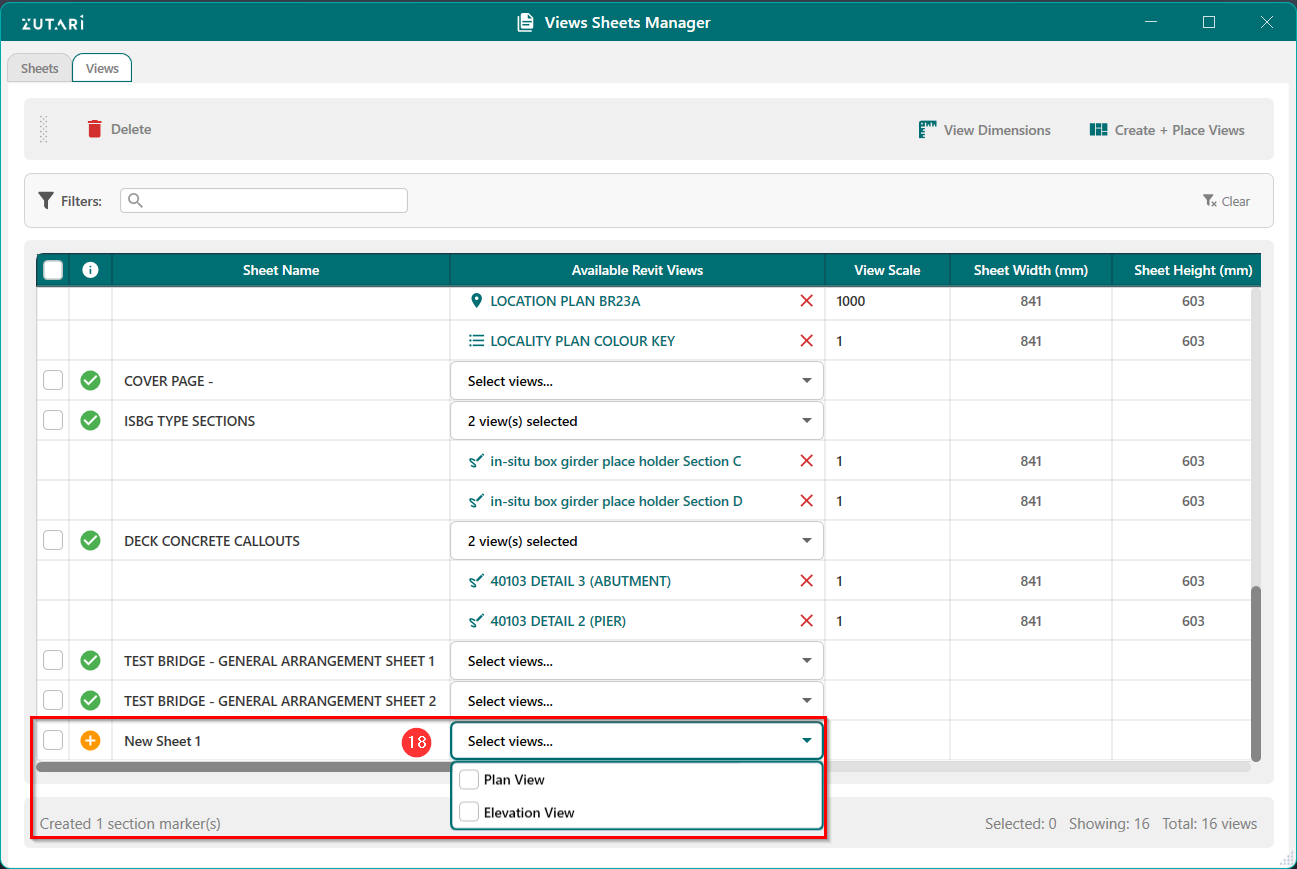
- Sheets created using selection methods will only have plan and elevation views for selection. Figure 1.19 below shows the available views to place on the sheet.
-
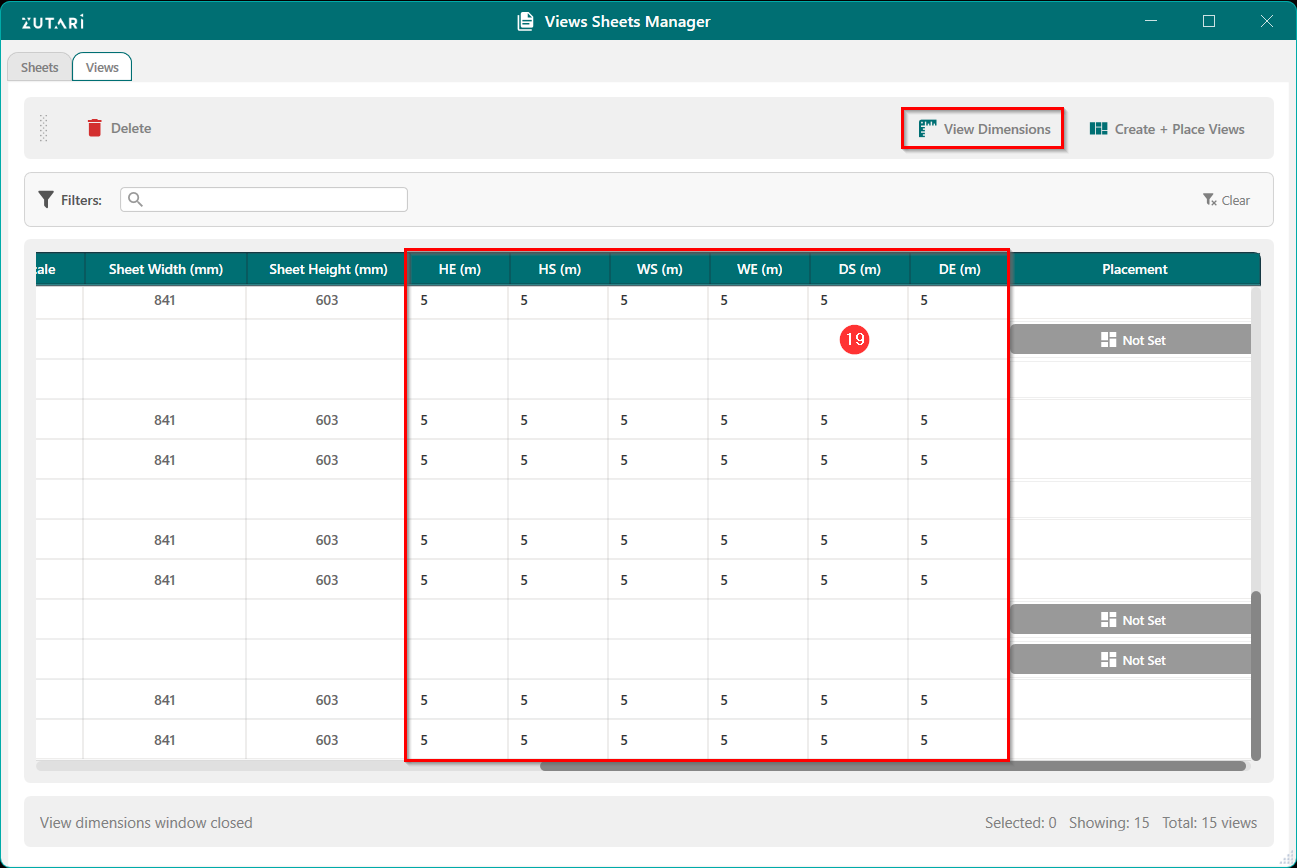
Views Manager View Crop Dimensions
- Configure the view dimensions by adjusting the width, height and depth crop parameters. Figure 1.20 below shows the columns to adjust the view dimension parameters.
-
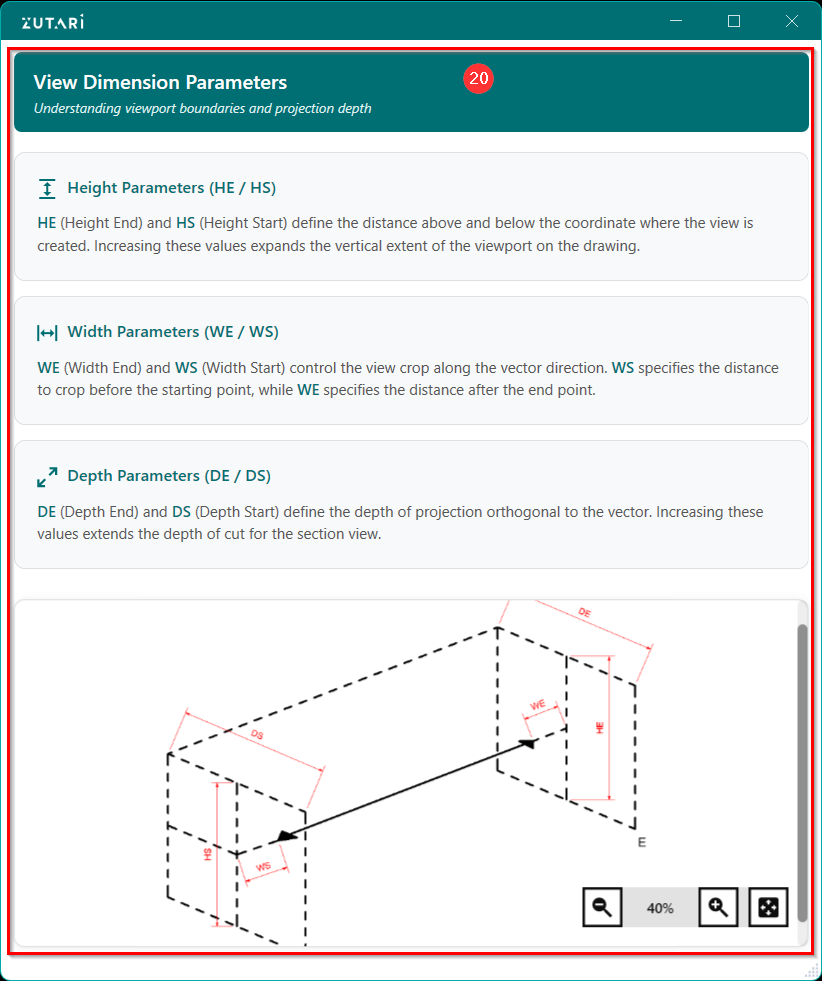
Views Manager View Dimensions
- View the meaning of each view dimension paramater by opening the view dimension dialog. Figure 1.21 below shows an explanation of each view dimension parameter.
-
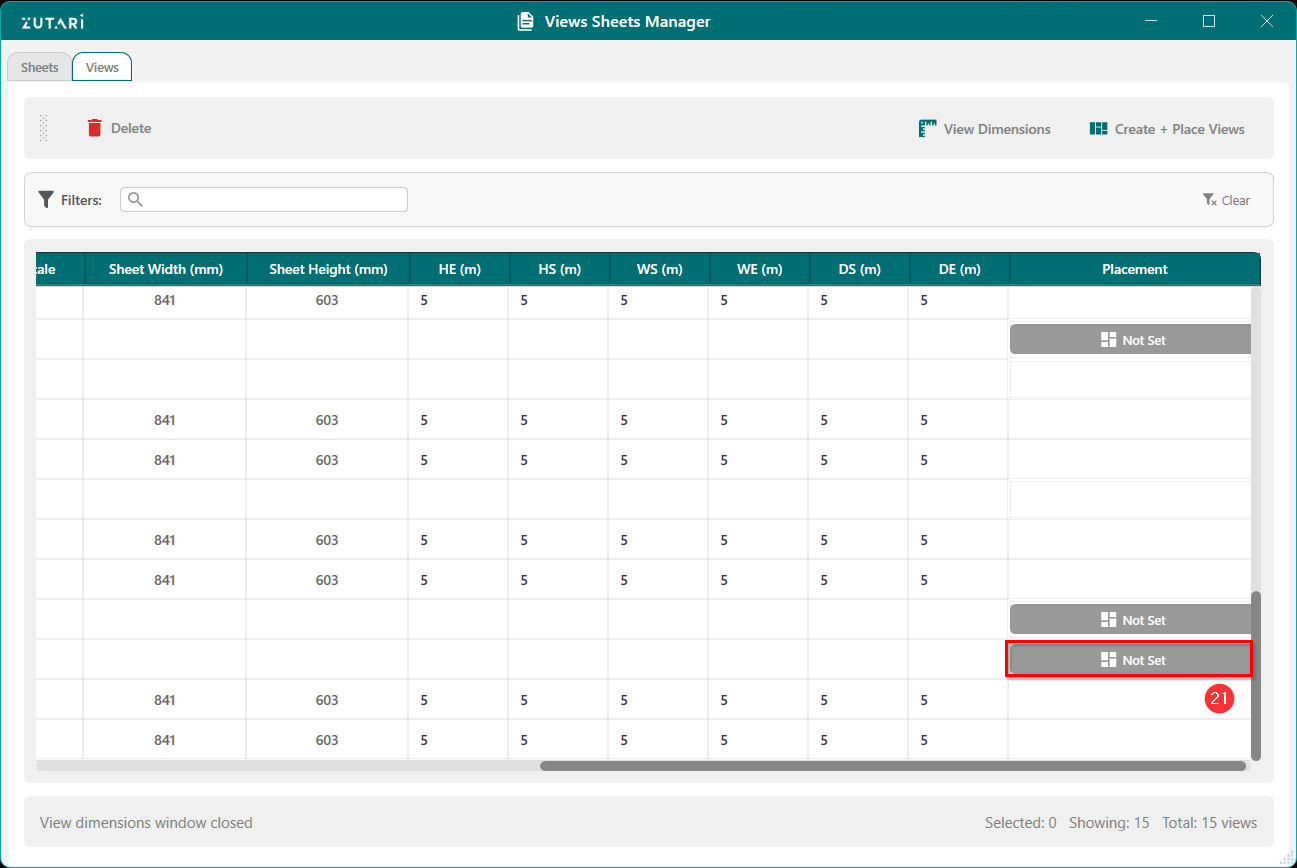
Views Manager View Placement
- Set the placement of the views on the sheet. Only two views can be placed on a sheet, more views and placement options to be added later. Figure 1.22 below shows the button to configure the view placement on the sheet.
-
Views Manager View Placement Dialog
- Use the placement dialog to view all the placement configurations. Figure 1.23 below shows the placement options with a placement preview canvas.
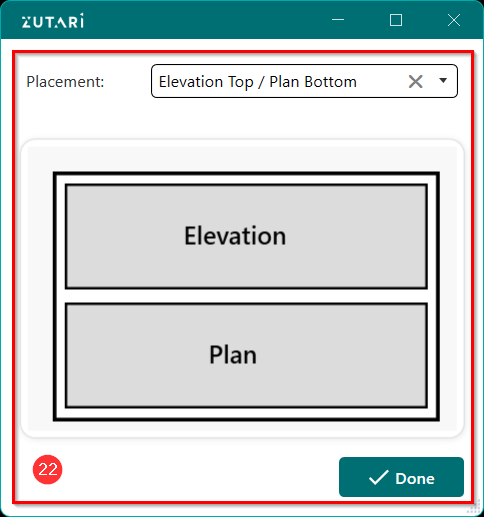
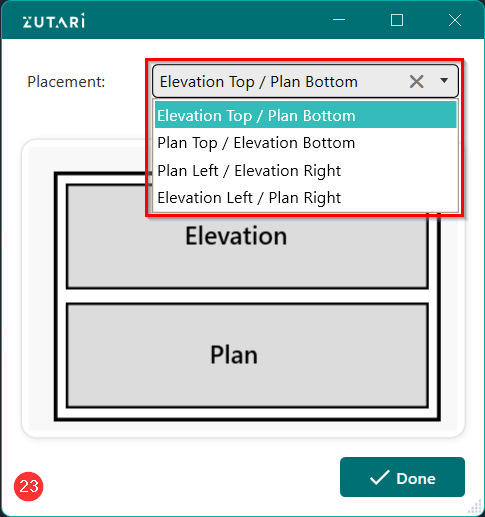
- Select view placement configuration. Figure 1.24 below shows all the available view placement options.
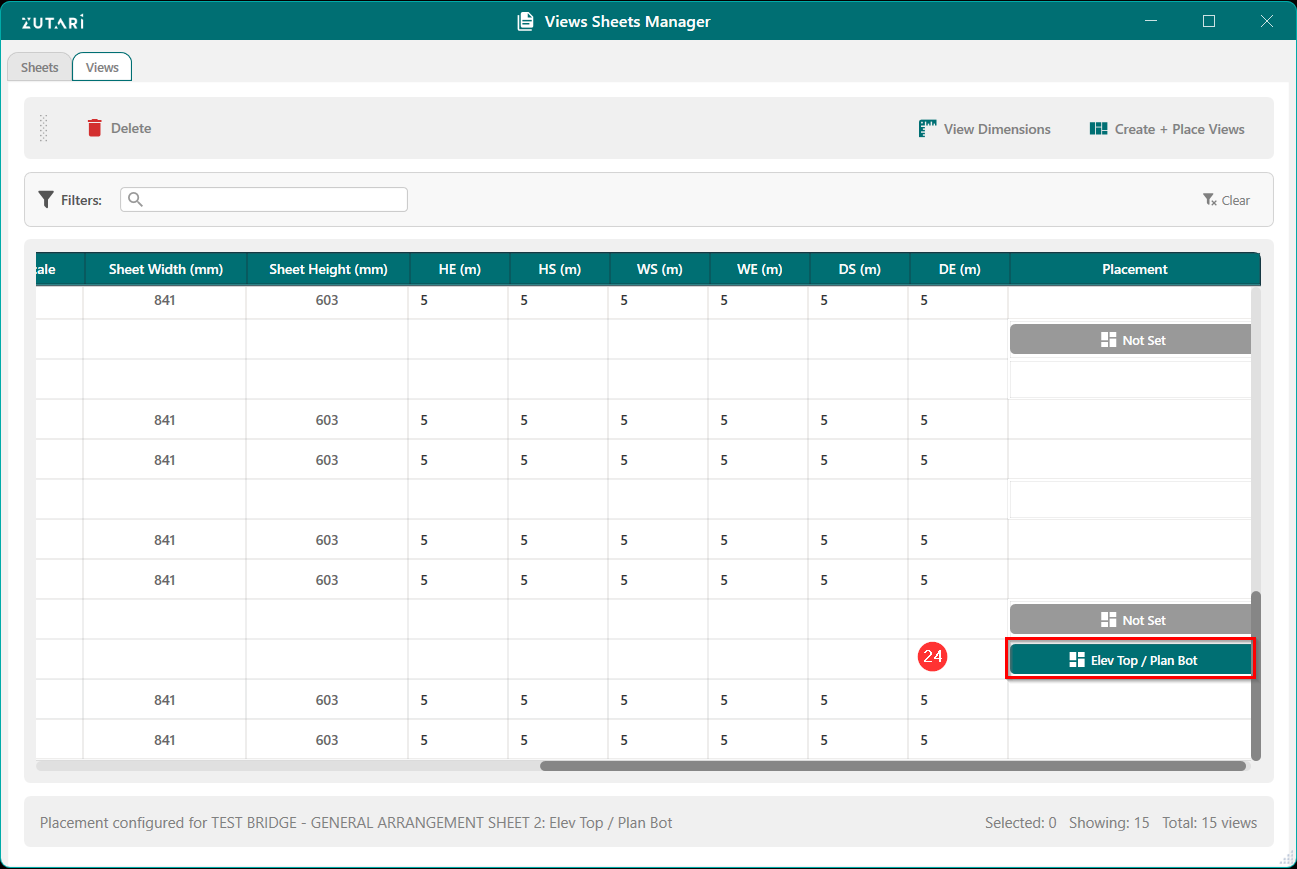
- Once selected, the placement button will display the selected view placement. Figure 1.25 below shows the selected view placement.
-
Create and Place Views
- Once the views are selected and the placement configuration is set, we can then place the views on the sheet based on the selected configuration. Figure 1.26 below shows the button to create the sheet if it has not been created and place the views on the sheet.
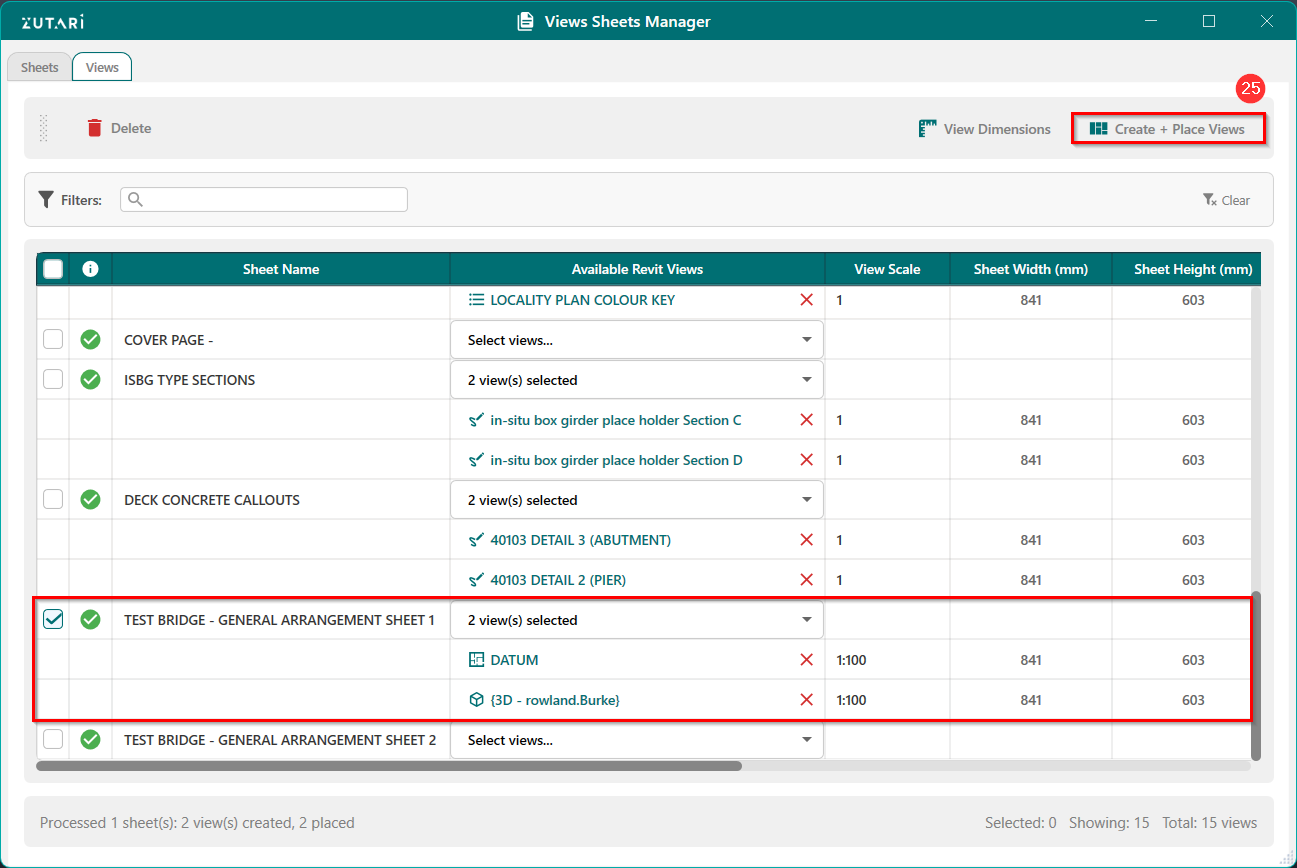
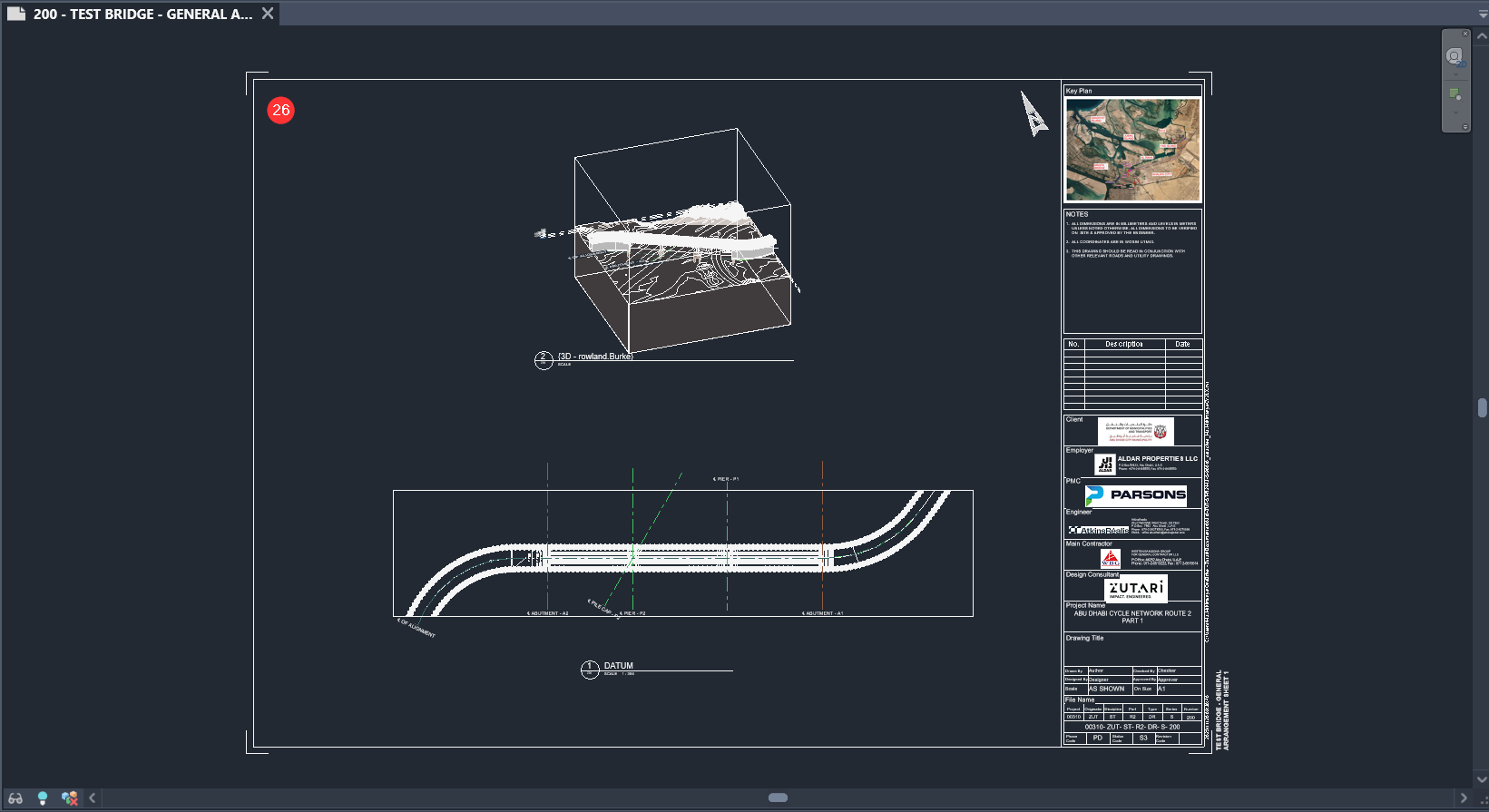
- The sheet can then be viewed by double clicking on the sheet name Figure 1.27 below shows the created sheet in Revit with the selected views placed on the sheet.