ZTools — Visual Studio
🛠️ Creating a New Tool in Visual Studio
To maintain consistency across the ZTools ecosystem, every new tool follows the MVVM architecture, ensuring clean separation between logic, UI, and data. This section guides you through creating a new tool in Visual Studio that integrates into the existing ZTools structure.
Step 1 — Create the Tool Folder Structure
Each tool in ZTools lives inside the /Tools directory and must contain the following subfolders:
- Model — Data structures, Revit element wrappers, configuration objects
- View — WPF windows, user controls (XAML files)
- ViewModel — Logic, commands, bindings (uses
CommunityToolkit.Mvvm)
Your folder structure should look like this:
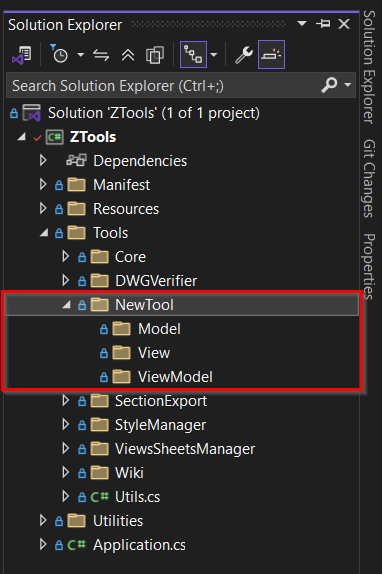
This MVVM structure ensures that each tool remains modular, testable, and easy to maintain.
Step 2 — Create the Model Class
With the folder structure created, the next step is to add the Model class for your tool. The Model layer contains the data and Revit API context your tool will operate on.
What the Model Should Contain
The Model typically stores:
- The active UIApplication instance
- The active Revit Document
- Any additional data structures your tool needs
Example: NewToolModel.cs
Below is the standard template for a Model class:
- UiApp gives you access to the full Revit UI API.
- Doc provides your active Revit document.
- The constructor receives UIApplication directly from the command handler, ensuring your tool always works with the correct Revit context.
using Autodesk.Revit.DB;
using Autodesk.Revit.UI;

namespace ZTools.Tools.NewTool.Model
{
    public class NewToolModel
    {
        /// <summary>
        /// Gets the active Revit UI application instance.
        /// </summary>
        public UIApplication UiApp { get; }

        /// <summary>
        /// Gets the active Revit Document.
        /// </summary>
        public Document Doc => UiApp.ActiveUIDocument.Document;

        /// <summary>
        /// Initializes a new instance of <see cref="NewToolModel"/> with the given Revit UI application context.
        /// </summary>
        /// <param name="uiApp">The active Revit UIApplication object.</param>
        public NewToolModel(UIApplication uiApp)
        {
            UiApp = uiApp;
        }
    }
}
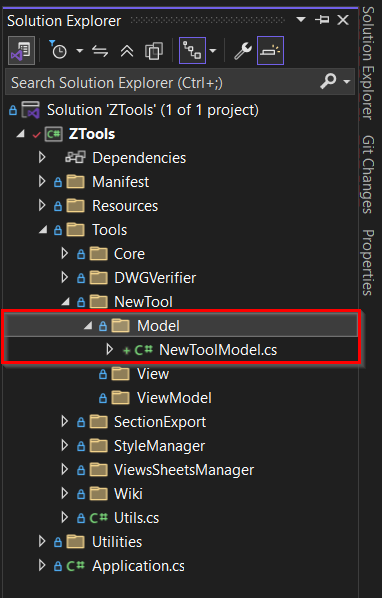
Your Model folder should now look like this:
Step 3 — Create the View (XAML Window)
With the Model created, the next step in building your MVVM-structured tool is to add the View. The View contains all the UI definitions and is written in XAML.
Creating the View
- Right-click the View folder inside your tool directory.
- Select Add → New Item.
- Choose Window (WPF) as shown below:
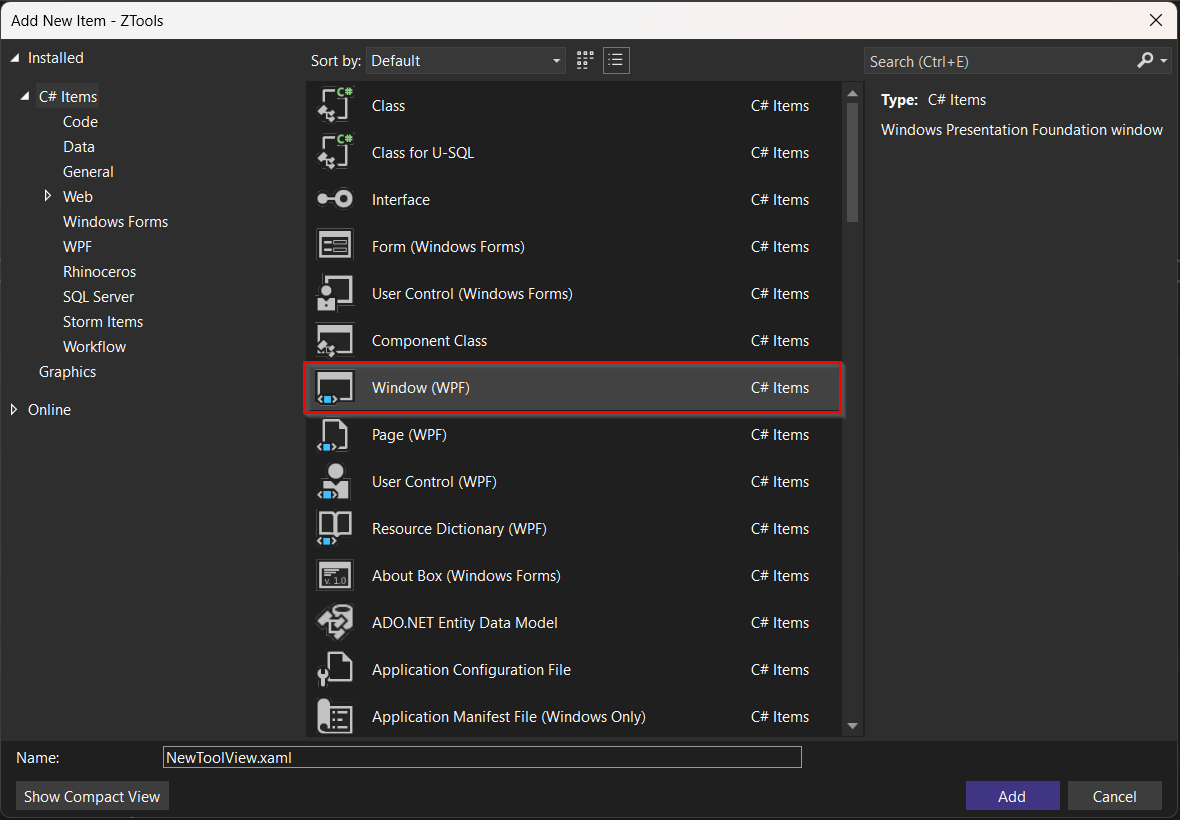
- Name the file something like:
NewToolView.xaml
This will generate both:
NewToolView.xaml— the UI layoutNewToolView.xaml.cs— the code-behind (kept minimal when using MVVM)
Expected Folder Structure
NewTool
 ├── Model
 │    └── NewToolModel.cs
 ├── View
 │    └── NewToolView.xaml
 └── ViewModel
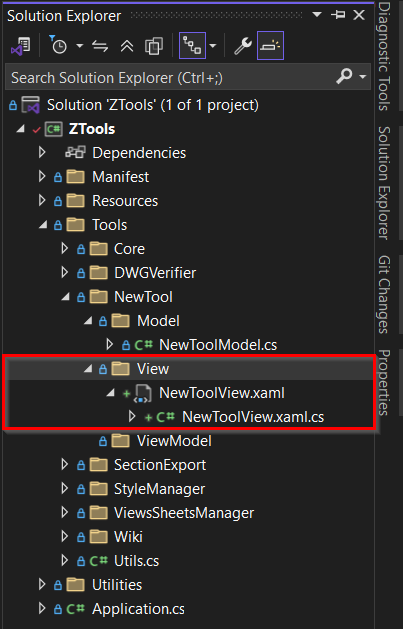
The View will later bind directly to the ViewModel, meaning no business logic is placed in the code-behind.
Example: NewToolView.xaml.cs
Below is the standard template for a code behind class with the Data Context set as the NewTool View Model:
using ZTools.Tools.NewTool.ViewModel;

namespace ZTools.Tools.NewTool.View
{
    public partial class NewToolView
    {
        /// <summary>
        /// Gets the strongly typed ViewModel associated with this view.
        /// </summary>
        public NewToolVM ViewModel => DataContext as NewToolVM;

        /// <summary>
        /// Initializes a new instance of the <see cref="NewToolView"/> class.
        /// </summary>
        public NewToolView()
        {
            InitializeComponent();
        }

        /// <summary>
        /// Initializes a new instance of the <see cref="NewToolView"/> class
        /// and assigns the specified ViewModel as the DataContext.
        /// </summary>
        /// <param name="viewModel">The ViewModel instance to bind to this view.</param>
        public NewToolView(NewToolVM viewModel) : this()
        {
            DataContext = viewModel;
        }
    }
}
Example: NewToolView.xaml
The View xaml should look as the image below.
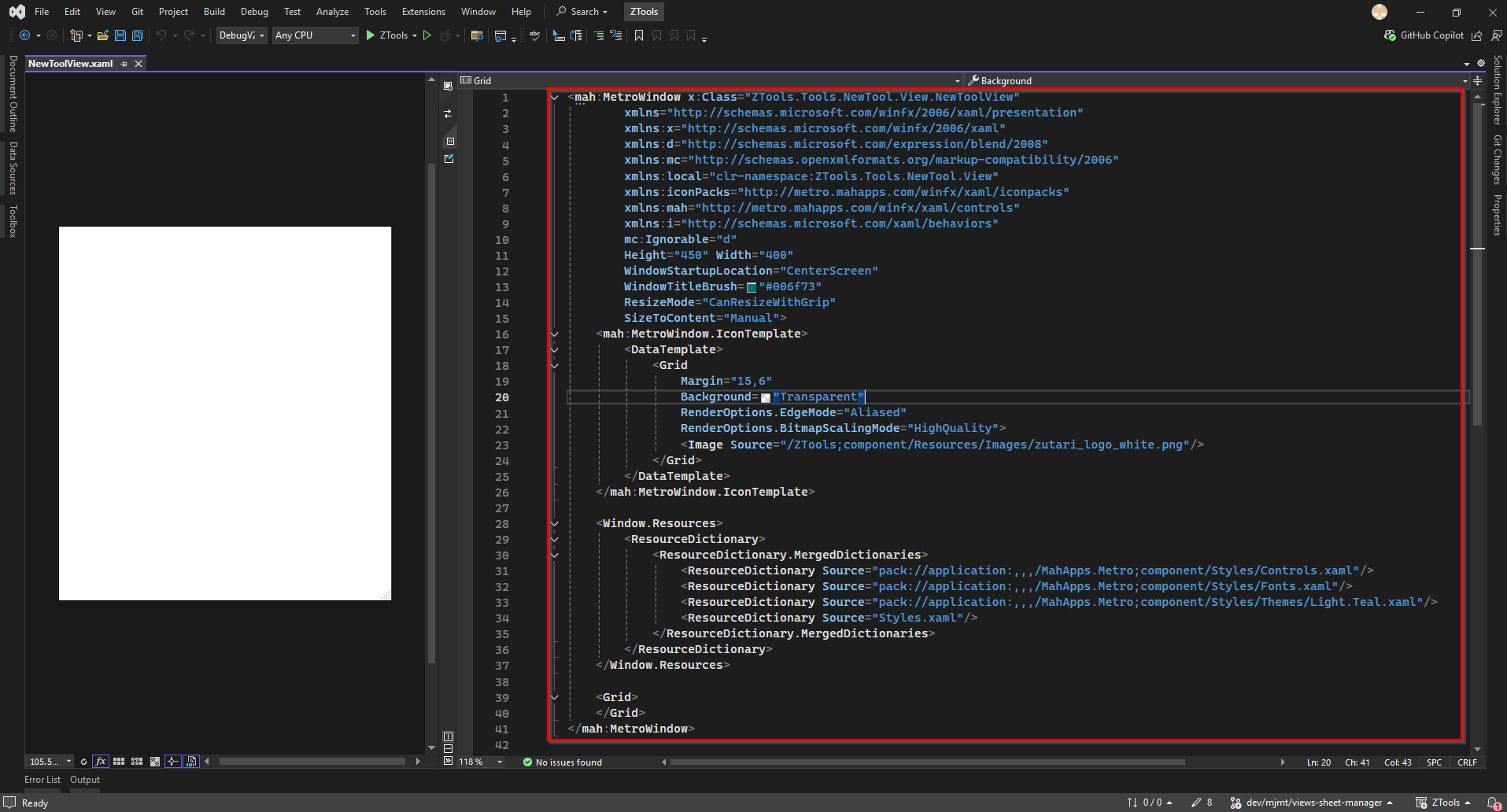
Step 4 — Create the ViewModel Class
The ViewModel is the core of the MVVM pattern.
- Exposes data and commands to the View
- Holds references to the Model
- Contains UI‑related logic (not Revit API logic)
- Supports automatic property change notifications through
ObservableObject
ZTools uses CommunityToolkit.Mvvm, which provides a lightweight and clean MVVM implementation.
Creating the ViewModel
- Inside your tool directory, open the
ViewModelfolder - Right‑click → Add → Class
- Provide tool name followed by VM for View Model:
NewToolVM.cs
ViewModel Base Structure
Here is the recommended structure for your ViewModel:
using CommunityToolkit.Mvvm.ComponentModel;
using ZTools.Tools.NewTool.Model;

namespace ZTools.Tools.NewTool.ViewModel;

/// <summary>
/// Represents the ViewModel for the NewTool feature.
/// Provides data binding, state management, and command logic
/// for the corresponding view.
/// </summary>
public partial class NewToolVM : ObservableObject
{
    /// <summary>
    /// The underlying model that provides access to Revit context and data.
    /// </summary>
    private readonly NewToolModel _model;

    /// <summary>
    /// Initializes a new instance of the <see cref="NewToolVM"/> class.
    /// </summary>
    /// <param name="model">The model instance supplying Revit application data and logic.</param>
    public NewToolVM(NewToolModel model)
    {
        _model = model;
    }
}
Inherits from ObservableObject
This gives your ViewModel:
INotifyPropertyChangedsupport- Strongly‑typed auto‑generated properties using
[ObservableProperty] - Clean and minimal boilerplate
Model injection
The Model is passed into the constructor because:
- The ViewModel must never directly query the Revit API
- All Revit API work stays in the Model layer
- This supports testability and clean design
- The ViewModel simply orchestrates UI logic and commands
The View binds to the ViewModel
Your XAML Window will later set its DataContext like this:
DataContext = new NewToolVM(new NewToolModel(uiApp));
Your folder structure should look like this:
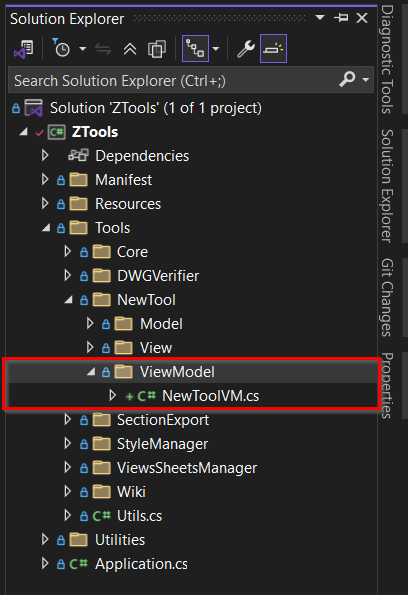
Step 5 — Creating the Revit Command
In Revit, every external tool must be triggered by a Revit command.
This command is the entry point that Revit executes when the user clicks your tool in the ribbon.
This step shows how to create the command class, how it connects Model → ViewModel → View, and how the tool window is correctly parented to Revit.
Folder Structure
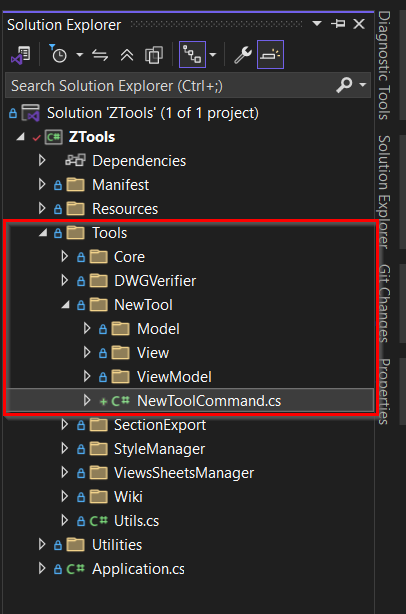
Your project should now look like this:
ZTools
 └── Tools
     └── NewTool
         ├── Model
         │    └── NewToolModel.cs
         ├── View
         │    └── NewToolView.xaml
         ├── ViewModel
         │    └── NewToolVM.cs
         └── NewToolCommand.cs   ← Step 5 (this file)
This structure keeps the tool isolated and modular. Your folder structure should look like this:
Purpose of the Revit Command
A Revit command is responsible for:
- Initializing the Model
- Initializing the ViewModel
- Creating and showing the View
- Ensuring the window behaves properly inside Revit (closing when Revit closes)
- Returning a
Resultback to Revit
Without this command, the tool will never open. Below is an example of how the command class should look like.
NewToolCommand.cs
using Autodesk.Revit.Attributes;
using Autodesk.Revit.UI;
using System.Diagnostics;
using System.Windows.Interop;
using ZTools.Tools.NewTool.Model;
using ZTools.Tools.NewTool.View;
using ZTools.Tools.NewTool.ViewModel;

namespace ZTools.Tools.NewTool;

[Transaction(TransactionMode.Manual)]
[Regeneration(RegenerationOption.Manual)]
[Journaling(JournalingMode.NoCommandData)]
public class NewToolCommand : IExternalCommand
{
    public Result Execute(
        ExternalCommandData commandData,
        ref string message,
        Autodesk.Revit.DB.ElementSet elements)
    {
        try
        {
            // Obtain access to the Revit UI application object
            var uiApp = commandData.Application;

            // Create the model — this contains Revit API logic
            var model = new NewToolModel(uiApp);

            // Create the view model — bridges UI and model
            var viewModel = new NewToolVM(model);

            // Create the view — the WPF window
            var view = new NewToolView(viewModel)
            {
              DataContext = viewModel,
            };

            // Parent the window to Revit so it closes with Revit
            var unused = new WindowInteropHelper(view)
            {
              Owner = Process.GetCurrentProcess().MainWindowHandle
            };

            // Display the UI modally
            view.ShowDialog();

            return Result.Succeeded;
        }
        catch (Exception ex)
        {
            message = ex.Message;
            return Result.Failed;
        }
    }
}
Why wrap Model → ViewModel → View here?
This ensures each time the command runs, the tool is initialized from scratch with fresh model data.
Why WindowInteropHelper?
This prevents:
- orphaned windows
- the window floating behind Revit
- the window staying open after Revit closes
Why ShowDialog()?
Most tools in ZTools are designed to pause execution until the user completes the action.
Step 6 — Add the Ribbon Button to the ZTools Tab
Now that your command is created (NewToolCommand.cs), the next step is to expose the tool inside Revit by adding a Ribbon Button on the ZTools tab.
6.1. Locate the Ribbon Initialization Code
Open:
ZTools/Application.cs
You should find something like:
public Result OnStartup(UIControlledApplication app)
{
    var generalPanel = RibbonUtils.CreatePanel(app, "ZTools", "General");
    var helpPanel = RibbonUtils.CreatePanel(app, "ZTools", "Help");

    // Existing buttons...
}
6.2 Add Your New Tool Button
Add this line under the other CreateButton calls:
RibbonUtils.CreateButton(
    generalPanel,
    typeof(NewToolCommand),
    "New\nTool",
    "Description for the new tool.",
    imagePathSheet32
);
Full context:
RibbonUtils.CreateButton(generalPanel, typeof(StyleManagerCommand),
    "Style\nManager", "Manage and change the styles in your project.", imagePathStyle32);

RibbonUtils.CreateButton(generalPanel, typeof(SectionExportCommand),
    "Section\nExport", "Export section parts of model based on level selected.", imagePathSection32);

RibbonUtils.CreateButton(generalPanel, typeof(ViewsSheetsManagerCommand),
    "Views & Sheets\nManager", "Manage and create sheets and views in the project.", imagePathSheet32B);

RibbonUtils.CreateButton(helpPanel, typeof(WikiCommand),
    "Wiki", "View documentation on how the tools work.", imagePathHelp32);

RibbonUtils.CreateButton(generalPanel, typeof(NewToolCommand),
    "New\nTool", "Description for the new tool.", imagePathSheet32);
6.3 Add Your Tool Icon
Add a 32×32 PNG icon here:
ZTools/Resources/Icons/NewTool32.png
Reference it:
string imagePathSheet32 = $"{iconsFolder}\\NewTool32.png";
6.4 Button Text Formatting
Revit supports line breaks using \n.
"New\nTool" displays as:
New
Tool
Step 7 — Run, Debug, and Test Your New ZTools Plugin
Once you have created the Model, View, ViewModel, Command class and created your tool button, the final step is to run the project, load the add-in into Revit, and test that your tool UI opens correctly.
Run the Project (Launch Revit with Your Add-in)
- Select the correct debug config in Visual Studio
- Press F5 (Start Debugging)
- Visual Studio launches Revit.exe
- Once Revit opens, go to the ZTools tab
- You should see your new tool appear inside the ZTools panel